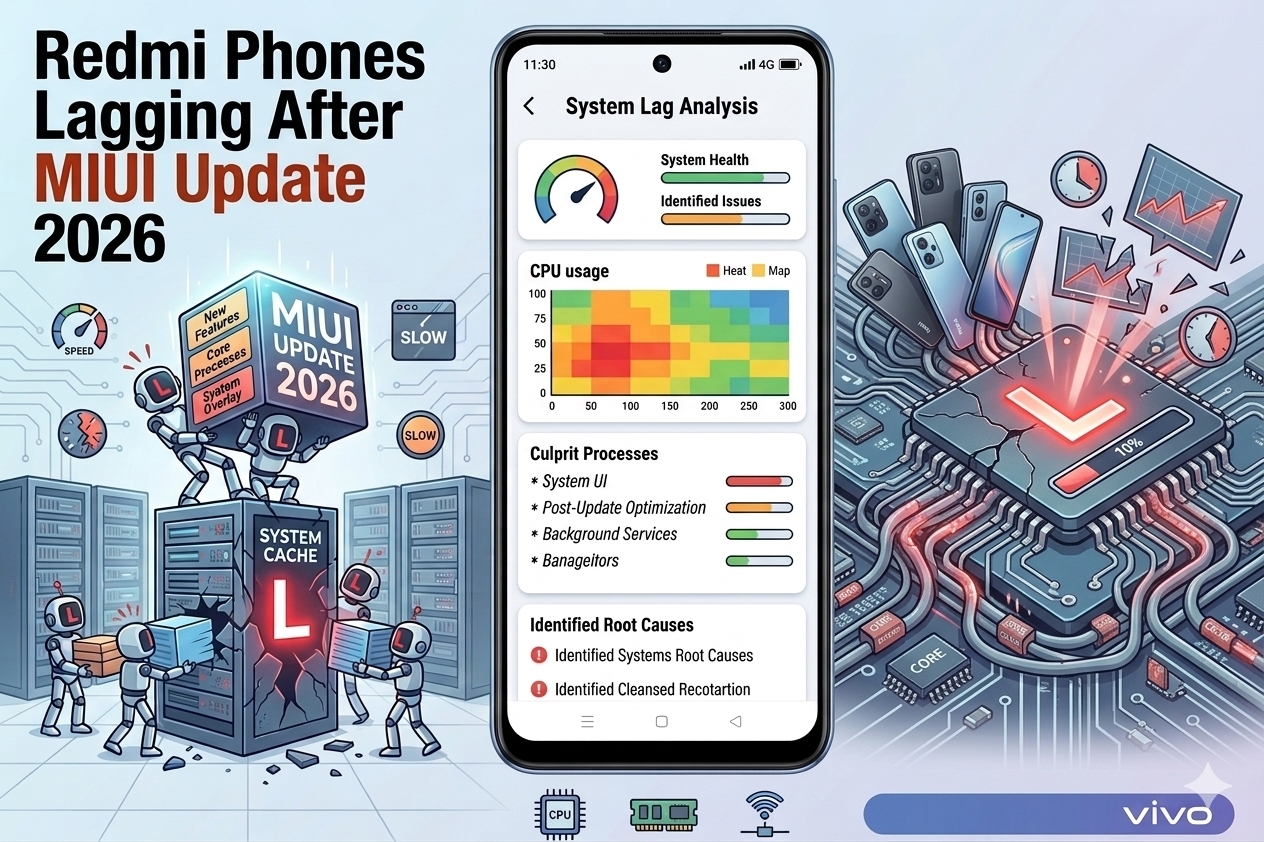
My brother’s Redmi Note 12 was perfectly fine for eight months. Then a MIUI update came through overnight and by morning the phone felt like it had aged three years in one night. Animations stuttering, apps taking twice as long to open, the keyboard lagging behind his typing. Here’s every fix that actually worked.
Redmi phones lagging after a MIUI or HyperOS update is one of the most common complaints on Xiaomi forums — and has been for years. You’d think by now they’d have sorted it out, but new updates still regularly arrive carrying the same set of problems: stuttery animations, apps reloading when you switch between them, heat building up for no obvious reason, and a general sluggishness that wasn’t there before.
The frustrating thing is that the phone isn’t actually slower. The hardware is identical to what it was before the update. What’s changed is how MIUI is managing that hardware — and most of the lag is fixable without any technical expertise or rooting.
Here’s everything I’ve found that works, starting with the quickest fixes and going deeper for the cases where the simple stuff doesn’t help.
Why Redmi Phones Lag After MIUI Updates
Before jumping into fixes, it helps to understand what’s actually happening. Most post-update lag on Redmi phones falls into a few specific categories:
After any major MIUI update, Android re-optimizes every installed app in the background. This process makes the phone feel slower for up to 48 hours. Charge the phone overnight with the screen off and don’t do the fixes yet — the lag might clear on its own. If it’s still there after 24–48 hours, then work through the fixes below.
The Fixes — Start From the Top
 // Fix_01 — Quick Wins
This is the single most impactful fix for perceived lag on any Android phone — including Redmi. MIUI resets animation speeds after updates, and the default settings are deliberately slow for visual effect. Reducing them to 0.5x makes the phone feel dramatically faster instantly.
- Go to Settings → About Phone → tap MIUI Version 7 times rapidly until “You are now a developer” appears
- Go back to Settings → Additional Settings → Developer Options
- Scroll down to the Drawing section
- Set Window animation scale → 0.5x
- Set Transition animation scale → 0.5x
- Set Animator duration scale → 0.5x
- Lock screen and unlock — the difference should be immediate
MIUI Optimization is Xiaomi’s aggressive memory and battery management layer. After updates it often resets to a mode that’s too aggressive — killing background apps instantly, causing everything to reload from scratch every time you switch. Disabling it makes app switching noticeably smoother.
- Go to Settings → Additional Settings → Developer Options
- Scroll down and find MIUI Optimization
- Toggle it OFF
- Restart the phone when prompted
- Test for 30 minutes — if any apps misbehave, toggle it back on
Most users see no negative effects from this. A small number of apps that rely on MIUI-specific features may behave differently — if so, re-enable it.
After a MIUI update, cached data from the old version can conflict with new system files. This is one of the most overlooked causes of post-update lag — the fix is to wipe the system cache partition, which is safe and doesn’t touch your personal data.
- Power off your Redmi phone completely
- Hold Volume Up + Power button simultaneously until the Mi Recovery screen appears
- Use volume buttons to navigate to “Wipe cache partition” or “Cache”
- Press Power to confirm
- Select “Reboot system now” when complete
- The first boot may take slightly longer than usual — this is normal
On newer Redmi phones with HyperOS you can also access this via Settings → About Phone → System Update → three dots → Clean Cache.
“The phone isn’t slower — it just thinks it needs to be. Most post-update lag on Redmi is the OS being overprotective about RAM and animations, not the hardware losing performance.”
MIUI updates frequently enable pre-installed apps that were previously dormant — Mi Browser, GetApps, Mi Video, Mi Music, Mi AI Assistant, and others. These run background processes immediately after the update and consume RAM that was previously free. You can’t uninstall them but you can disable them.
- Go to Settings → Apps → Manage Apps
- Tap the filter icon → enable “Show system apps”
- Find and disable apps you don’t use: Mi Browser, GetApps, Mi Video, Mi Music, Mi Pay, Game Turbo (if you don’t game)
- For each: open the app → tap Disable
- Also check: Mi Ads, Feedback, Mi Drop if not used
Do not disable: Phone Manager, Security, System Update, Mi Account, or Google services. Disabling system-critical apps can cause instability.
MIUI updates often reset background app permissions to “Save power” mode which throttles app processing even when you’re actively using them. This causes the keyboard lag, slow camera opening, and app loading delays that feel like hardware slowdown.
- Go to Settings → Battery & Performance
- Tap App Battery Saver
- For your most-used apps (WhatsApp, Chrome, Instagram, camera): set to “No restrictions”
- Also: Settings → Battery & Performance → Battery Saver → make sure it’s OFF unless you actually need it
- Under Settings → Apps → Manage Apps → select frequently used apps → Battery Saver → No restrictions
Most Redmi Note series and newer Redmi phones have a RAM extension feature that uses internal storage space as virtual RAM. After an update this is sometimes reset or the value reduced. Increasing it helps with app multitasking lag significantly.
- Go to Settings → Additional Settings → RAM Extension (or search “RAM” in Settings)
- Enable it if off, or increase the value — 2GB is a good starting point, 3–4GB if you have storage to spare
- Restart the phone for the change to take effect
- If you don’t see this option: Settings → About Phone → Memory Extension
MIUI sometimes resets display and performance modes after updates — especially refresh rate settings on phones that support 90Hz or 120Hz. If your phone drops back to 60Hz after an update, everything feels noticeably less smooth even without any actual lag.
- Go to Settings → Display → Refresh Rate → set to the highest available (90Hz, 120Hz, or Auto)
- Go to Settings → Display → Touch Sampling Rate → set to highest available if shown
- For Redmi Note 12 Pro, 13 Pro, and similar: Settings → Battery & Performance → Performance Mode → enable if needed for gaming or heavy use
- On HyperOS: Settings → Display → Smooth Display → set to High
MIUI loads ads in the system apps — App Vault, Security app, GetApps — and these fetch data in the background constantly. This creates surprisingly significant background activity that contributes to sluggishness especially on 4G/5G connections.
- Settings → Passwords & Security → Authorization & Revocation → MSA → Revoke
- Settings → Additional Settings → Privacy → Ads → Opt Out of Personalized Ads
- In the Security app → Settings (gear icon) → disable “Receive recommendations”
- In the GetApps app → Settings → disable all notification and recommendation options
If you’re on a freshly released major update (like the jump to HyperOS 2 or a new MIUI version), there’s a good chance the lag is a known bug that Xiaomi is already working on. Check the MIUI forum for your specific device model and see if others are reporting the same issue — if it’s widespread, a patch usually follows within 2–4 weeks.
- Go to Settings → About Phone → System Update and check for any minor patch updates
- Visit xiaomiui.net or the Xiaomi Community app and search your device model + “lag” to see if it’s a known issue
- If confirmed: enable automatic updates so the patch installs as soon as it’s available
If nothing else has resolved the lag, a factory reset after a major update sometimes genuinely helps — especially if you’ve been restoring from backup across multiple MIUI versions and have accumulated system app conflicts over time. This is a significant step but it’s worth knowing about.
- Before anything: back up photos, contacts, WhatsApp (to Google Drive), and any important files
- Go to Settings → About Phone → Factory Reset
- Select “Erase all data” — confirm when prompted
- Set up as new phone — do NOT restore from backup immediately. Use for 2–3 days first to confirm the lag is gone
- If the phone runs fast as a fresh setup, restore apps one by one rather than doing a full restore — this prevents old settings conflicts coming back
Which Fix Matches Your Symptom
| Symptom | Start With |
|---|---|
| Everything feels sluggish immediately after update | Fix 01 (animations) + wait 24–48 hrs for optimization |
| Apps reload every time you switch between them | Fix 02 (MIUI Optimization) + Fix 06 (RAM Extension) |
| Keyboard lagging behind typing | Fix 05 (battery restrictions) + Fix 01 (animations) |
| Phone heating up after update | Fix 04 (disable bloatware) + Fix 03 (cache wipe) |
| Animations stutter but apps load fine | Fix 01 (animations) + Fix 07 (refresh rate reset) |
| Lag only in specific apps | Fix 05 (battery saver per app) — those specific apps need unrestricted |
| Phone was fine, MIUI update ruined it, nothing helps | Fix 09 (wait for patch) then Fix 10 if still broken after 2 weeks |
Mistakes That Make Things Worse
Apps like “Phone Cleaner,” “RAM Booster,” and “Speed Up Android” don’t help on MIUI — they add another layer of background processes competing with Xiaomi’s own memory manager. On stock Android these can marginally help. On MIUI they conflict with the system’s own process management and often make things worse. Uninstall them if you have any.
When disabling bloatware (Fix 04), people sometimes disable apps that MIUI genuinely needs. Disabling “Phone Services,” “MIUI System Framework,” “Security Core Component,” or Google Play Services causes serious instability — apps crashing, notifications breaking, Google login failing. Only disable apps you can identify as non-essential and recognise by name.
It’s technically possible to flash an older MIUI version but it requires unlocking the bootloader (a 168-hour wait process on Xiaomi), and doing it wrong can brick the phone. It’s also not always a permanent solution because Xiaomi can push updates automatically. Unless you’re technically comfortable with flashing ROMs, this is not worth the risk.
If your Redmi updated to HyperOS 1 or 2 (Xiaomi’s replacement for MIUI), some menu locations have changed. “Developer Options” is still under Additional Settings. “MIUI Optimization” may appear as “System Optimization.” The fixes are the same but the exact path to settings can differ slightly — use the Settings search bar if you can’t find something.
What Fixed My Brother’s Redmi Note 12
For his specific situation, the combination that worked was Fix 01 (animation speed to 0.5x), Fix 02 (MIUI Optimization off), and Fix 05 (battery restrictions removed for WhatsApp and Chrome). The whole process took about fifteen minutes.
The phone didn’t become faster than before the update — it returned to roughly the same performance level. Which is all most people want. They don’t want a miracle, they just want the phone they had yesterday back.
Two weeks later a minor MIUI patch came through and improved things further — the post-update background activity settled down and RAM usage dropped by about 400MB consistently. So the “wait for the next patch” advice (Fix 09) was also partially correct in this case.
Animation scales set to 0.5x ✓ → MIUI Optimization toggled ✓ → System cache wiped ✓ → Unused system apps disabled ✓ → Battery restrictions removed for main apps ✓ → RAM Extension enabled ✓ → Refresh rate at maximum ✓ → Ads/background data disabled ✓. If all eight are done and lag persists after 48 hours, the next step is checking the MIUI forum for a known patch, then considering a factory reset as the final option.
Start with Fix 01 — animation speeds make the biggest immediate difference and take under two minutes. Then Fix 02 and Fix 05 for the deeper memory management issues. Fix 03 (cache wipe) is worth doing even if the lag isn’t severe — it takes five minutes and prevents future conflicts. Don’t install any “optimizer” apps, don’t disable anything you can’t identify, and give the phone 24–48 hours after the update before declaring the situation unfixable. Most post-MIUI-update lag is the system settling, and most of the rest is three or four settings that got reset to defaults you didn’t choose.