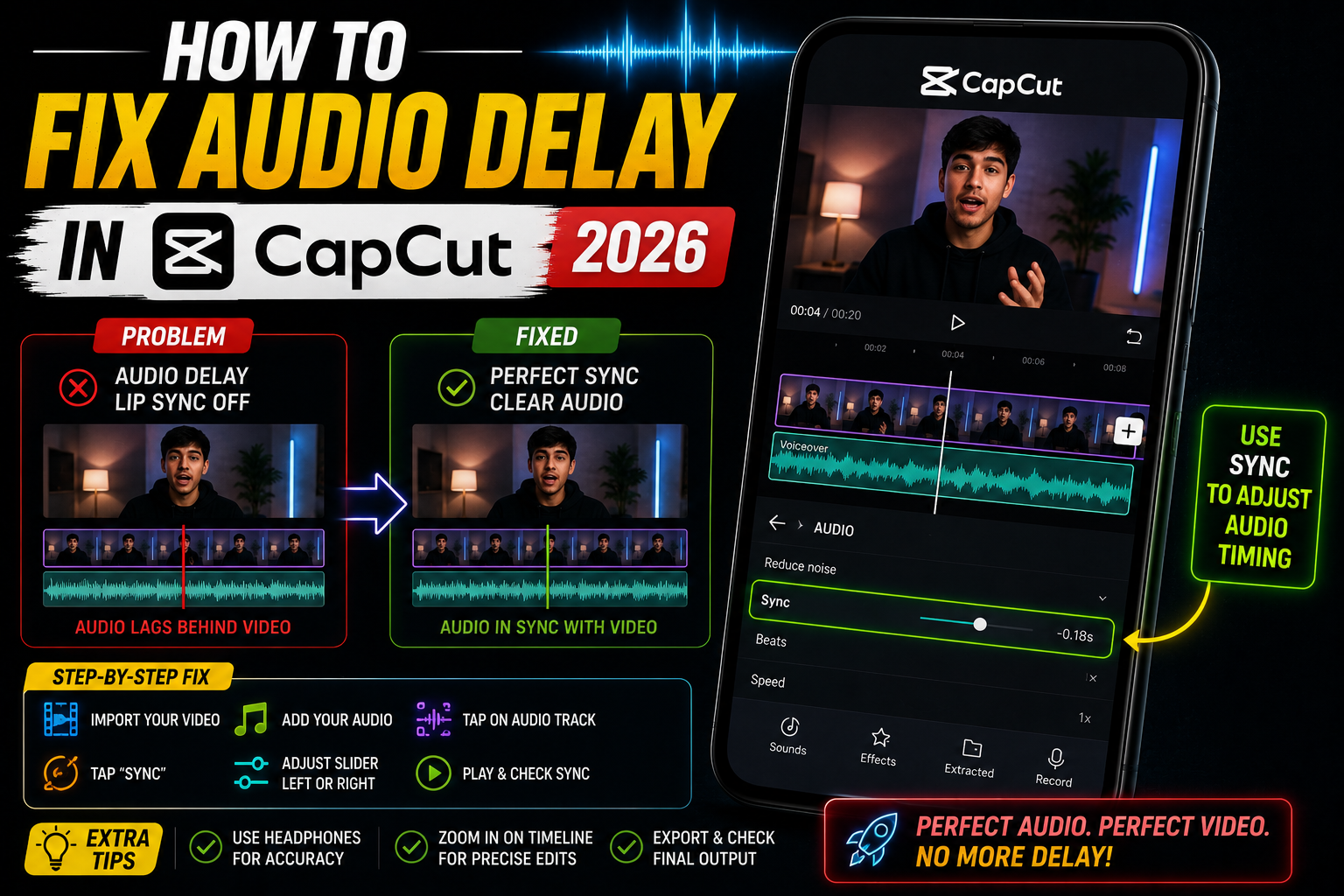
How to Fix Audio Delay in CapCut
I exported a reel with a perfect beat drop transition. Uploaded it. The audio was half a second behind the cut. I’d been editing for two hours and the sync was completely off on the final video. The preview looked fine. The export didn’t.
Audio delay in CapCut is one of those problems that genuinely makes you question your editing skills before you realise it’s a technical issue, not a user error. You watch the timeline, everything looks aligned. The beat hits on the cut. The voiceover lines up with the text. You export — and somehow, on the final video, the audio is either late or early by a noticeable margin.
I’ve hit this in three different versions of CapCut across an Android and an iPad. Each time the cause was slightly different. Sometimes it’s a CapCut app bug. Sometimes it’s the audio file format. Sometimes it’s a phone performance issue that affects how CapCut previews versus exports audio timing.
What frustrates people the most is that the delay often only shows up after export — not during editing. So you don’t catch it until the video is already done and you’re about to post it. That’s the situation I want to help you avoid.
Why CapCut Audio Gets Out of Sync
The causes vary depending on whether the delay happens in the editor preview, in the exported file, or in both. Knowing which situation you’re in helps you go straight to the right fix.
Does the audio delay happen only in the exported video, or also while you’re editing and previewing? If it’s only in the export: almost certainly a VFR video issue (Fix 1) or a Bluetooth audio issue (Fix 4). If the preview itself is laggy and out of sync: it’s a performance or cache issue (Fix 5 and Fix 6). Different causes, different solutions.
The Fixes — Work Through These in Order
Variable frame rate (VFR) video is the single biggest cause of audio sync issues in CapCut — and most people have no idea their clips are VFR. Videos recorded with screen recorders (like AZ Screen Recorder or even some phone cameras in certain modes) often produce VFR files. CapCut handles VFR inconsistently: the preview plays correctly, but during export it re-encodes the video at a fixed frame rate and the audio track doesn’t shift with it.
The fix is to convert your video to constant frame rate (CFR) before bringing it into CapCut. The best free tool for this is HandBrake on PC/Mac, or Video Converter — MP4, MKV on Android.
- On PC with HandBrake: Open HandBrake → drag in your video → under “Video” tab, set “Framerate” to a fixed rate (30fps) → uncheck “Variable Framerate” → make sure “Constant Framerate” is selected → export as MP4
- Quick check on Android: Install MediaInfo (free on Play Store) → open your video → look for “Frame rate mode” — if it says “Variable”, that’s your problem
- On iPhone: If you recorded with the iPhone camera in HDR or Cinematic mode, convert it first using Handbrake on Mac or use the Video Converter app on iOS
- After converting: import the CFR version into CapCut and rebuild your edit (or just replace the clip in your existing project)
- Export and check sync — this resolves the issue in about 70% of export-time audio delay cases
If your audio is consistently delayed by the same amount every time — say, always 0.3 seconds late — you can compensate by shifting the audio track forward in the timeline. It’s not fixing the root cause, but it gets you a synced export fast when you’re on a deadline.
- In CapCut, tap your audio track in the timeline to select it
- Long press and drag it slightly to the left — you’re moving it earlier in time so it plays sooner
- For voiceover tracks: tap the track → look for the “Edit” option → some versions show a millisecond-level position adjustment
- Export a short 5-second test clip first to check if the offset is right before exporting the full video
- If the delay is inconsistent (sometimes early, sometimes late), this won’t help — the VFR fix in Fix 1 is what you need
When you have a video with audio already embedded and you want to edit them separately, some people delete the original audio and import the same audio as a separate file. This introduces a small sync offset because CapCut doesn’t always align imported audio files to the exact frame. Instead, use CapCut’s built-in extract audio feature — it keeps the audio perfectly locked to the video’s original timing.
- In CapCut, tap your main video clip in the timeline
- Scroll through the bottom menu and find “Extract audio”
- Tap it — CapCut separates the audio as its own track while keeping it perfectly aligned
- Now you can edit the audio track independently without any timing offset
- Delete any separately imported audio file you’d added before — that’s likely where the delay was coming from
“The export looked perfect in the timeline. The beat hit exactly on the cut. Then I watched the exported file and the music was a full half-second behind every transition. Three exports later I figured out the clip was VFR the whole time.”
This one catches a lot of people off guard. When Bluetooth headphones are connected to your phone, Android and iOS route audio through the Bluetooth stack, which adds latency. CapCut in some versions uses the active audio output device to determine timing during export — meaning Bluetooth latency gets baked into the exported file. The exported video then plays back with audio delay even through speakers.
- Before you tap export in CapCut: go to your phone’s Bluetooth settings and disconnect your earbuds or headphones
- Make sure the active audio output is the phone’s built-in speaker (check the quick settings panel)
- Now export from CapCut
- You can reconnect your Bluetooth device after the export finishes
- This is especially common with AirPods, Galaxy Buds, and any aptX or LDAC headphones — higher quality codecs introduce more latency
CapCut builds up a significant cache of temporary render files. When this cache gets large or corrupted, it causes audio preview issues — the audio stutters, plays ahead of the video, or lags noticeably during playback in the editor. Clearing the cache forces CapCut to re-render everything fresh.
- From inside CapCut: Open CapCut → tap your profile icon (top right) → Settings → scroll down to “Clear cache” → confirm
- On Android (alternative): Settings → Apps → CapCut → Storage → Clear Cache
- On iPhone: CapCut doesn’t have a manual cache clear in Settings. Instead: offload the app (Settings → General → iPhone Storage → CapCut → Offload App) then reinstall
- After clearing cache: open CapCut, give it 30 seconds to initialise, then open your project and test playback
- Note: clearing cache doesn’t delete your projects — your edits are saved separately
Video export is one of the most CPU and RAM-intensive things a phone does. When other apps are competing for resources during export, CapCut can drop frames or skip audio processing steps — resulting in an exported file where the audio and video aren’t in lock-step. This is more common on phones with 4GB RAM or less, and on older Redmi, Realme, or budget Samsung phones.
- Before exporting: close all recent apps (swipe them away from the recents screen)
- Turn off WiFi and mobile data temporarily — background syncing during export competes for CPU
- Put your phone in Do Not Disturb mode — incoming notifications can interrupt the export process
- Keep the CapCut screen active during export — don’t lock the phone or switch to another app
- Plug in your charger before exporting long videos — some phones throttle CPU speed when battery drops below 20%, which causes export timing issues
CapCut releases updates frequently — sometimes weekly. Specific versions have had documented audio sync bugs, particularly after the app’s major redesigns in late 2024 and early 2025. If you haven’t updated in a while, there’s a real chance you’re running a version with a known audio issue that’s already been patched.
- Android: Open Play Store → search CapCut → tap Update if available
- iPhone: App Store → tap your profile → scroll to CapCut → update
- After updating: don’t restore from an old project immediately — create a short test project first to confirm the sync issue is gone
- If the issue appeared after an update (not before): go to the CapCut community forums or Reddit’s r/CapCut — check if others report the same after the same update. Sometimes rolling back to a previous version (Android only, via APK from APKMirror) is the temporary fix while you wait for the next patch
Not all MP3 files are created equal. Some MP3s — particularly those downloaded from certain sites or converted through lossy pipelines multiple times — have what’s called an “encoder delay” baked in. This is a small silent gap at the start of the audio file that most players compensate for automatically, but CapCut doesn’t always handle it correctly. The result: your music seems to start slightly late even when it’s placed at the exact right position in the timeline.
- Convert your background music to WAV (uncompressed, no encoder delay) or AAC (which CapCut handles most reliably)
- Free tool for this on PC: Audacity (open the MP3, export as WAV) or FFmpeg via command line
- On Android: Audio Converter (free on Play Store) — import your MP3, export as AAC or WAV
- Import the converted file into CapCut and replace the original audio track
- This is especially relevant for royalty-free music downloaded from Pixabay, Mixkit, or similar sites — those MP3s frequently have encoder delay
If the delay is specifically with your voiceover track — not background music — the most reliable fix is to re-record it directly inside CapCut rather than recording externally and importing. CapCut’s built-in recorder generates audio that’s natively synced to the timeline. Externally recorded files often have a few frames of offset depending on the recording app used.
- In your CapCut project, tap “Audio” in the bottom bar → select “Record”
- Position the playhead where your voiceover should begin
- Hold the record button and speak — CapCut records directly to the timeline position
- This creates a voiceover track that’s perfectly aligned without any import offset
- If you need to use an externally recorded file (e.g. a professional mic recording), try using Audacity to trim any silent lead-in at the start of the audio file before importing
Symptom-to-Fix Reference
| What You’re Seeing | Start With This Fix |
|---|---|
| Audio fine in preview, delayed in export | Fix 1 (VFR video) — this is almost always the cause |
| Audio delayed in preview AND export | Fix 5 (clear cache) + Fix 6 (close background apps) |
| Music starts late even when positioned correctly | Fix 8 (convert MP3 to WAV — encoder delay issue) |
| Voiceover is out of sync with video | Fix 9 (re-record inside CapCut) or Fix 2 (manual nudge) |
| Started after connecting Bluetooth earbuds | Fix 4 (disconnect Bluetooth before exporting) |
| Delay inconsistent — sometimes fine, sometimes not | Fix 6 (performance) + Fix 5 (cache) — resource issue |
| Problem started after CapCut update | Fix 7 (update again or check r/CapCut for known bugs) |
| Screen recording clips always out of sync | Fix 1 (convert to CFR) — screen recorders almost always produce VFR |
Mistakes That Make It Worse
If your export has audio delay, exporting the exact same project again without making any changes will produce the exact same result. The issue is in the source material or settings — not random luck. Identify the cause first using the symptom table above, make the relevant change, then re-export. Blind re-exporting wastes time and storage.
CapCut’s auto-sync feature works by matching audio waveforms between clips. If one of your source clips already has a slight audio offset (common with screen recordings), auto-sync will align the waveforms — which are already offset — and make the final sync worse than if you’d done it manually. Check your source clips for sync issues before using auto-sync.
When you’re troubleshooting an audio delay, switching to CapCut’s built-in music library for testing is a good idea — those tracks are in a format CapCut processes natively. But some people do this, confirm it works, and then assume the problem is fixed — then go back to their original external audio file and get confused when the delay returns. The test only confirms it’s a file format or VFR issue, not that the problem is fully resolved.
If you’re editing on a phone with 3–4GB RAM or a mid-range processor from 2021 or earlier, CapCut’s real-time preview will always struggle with audio sync on complex projects (lots of effects, multiple audio tracks, 1080p or higher). The preview lag isn’t a bug — it’s a hardware limitation. The key is checking the exported file rather than judging by preview. Export a short section first before committing to the full export.
What Fixed My Audio Delay
Going back to that reel I mentioned at the start — the one where the beat drop was completely off in the export. The clip I was using came from a screen recording I’d made of a game. Screen recorders on Android produce VFR video almost universally, and I hadn’t even considered that.
I ran it through HandBrake, set it to constant 30fps, brought the converted file into CapCut to replace the original clip. Exported. Perfectly synced. The whole fix took about four minutes once I knew what I was looking for.
The frustrating part is that CapCut doesn’t warn you about VFR files at import — it just accepts them and lets you edit normally. You only discover the problem after exporting. Hopefully that’s something they address, but until then, converting to CFR before importing is just a habit worth building if you edit regularly.
Check source videos for VFR (use MediaInfo app) ✓ → Convert screen recordings to CFR before importing ✓ → Disconnect Bluetooth headphones ✓ → Use CapCut’s built-in recorder for voiceover ✓ → Convert downloaded MP3 music to AAC or WAV ✓ → Close background apps before exporting ✓. Doing these before starting your edit prevents the sync problem from appearing in the first place.
Start with Fix 1 if your audio is fine in the editor but delayed in the export — variable frame rate source video is the cause in the majority of cases. Run your clip through HandBrake before importing it into CapCut. If the delay shows up in the editor preview too, clear CapCut’s cache and close background apps before re-testing.
Disconnect Bluetooth headphones before every export — it takes two seconds and eliminates one whole category of sync issues. And if you use downloaded MP3 music, convert it to WAV or AAC first to avoid encoder delay. None of these fixes are complicated once you know what to look for. The real issue is that CapCut doesn’t surface any of this information — it just silently produces a desync’d file and leaves you to figure out why.