
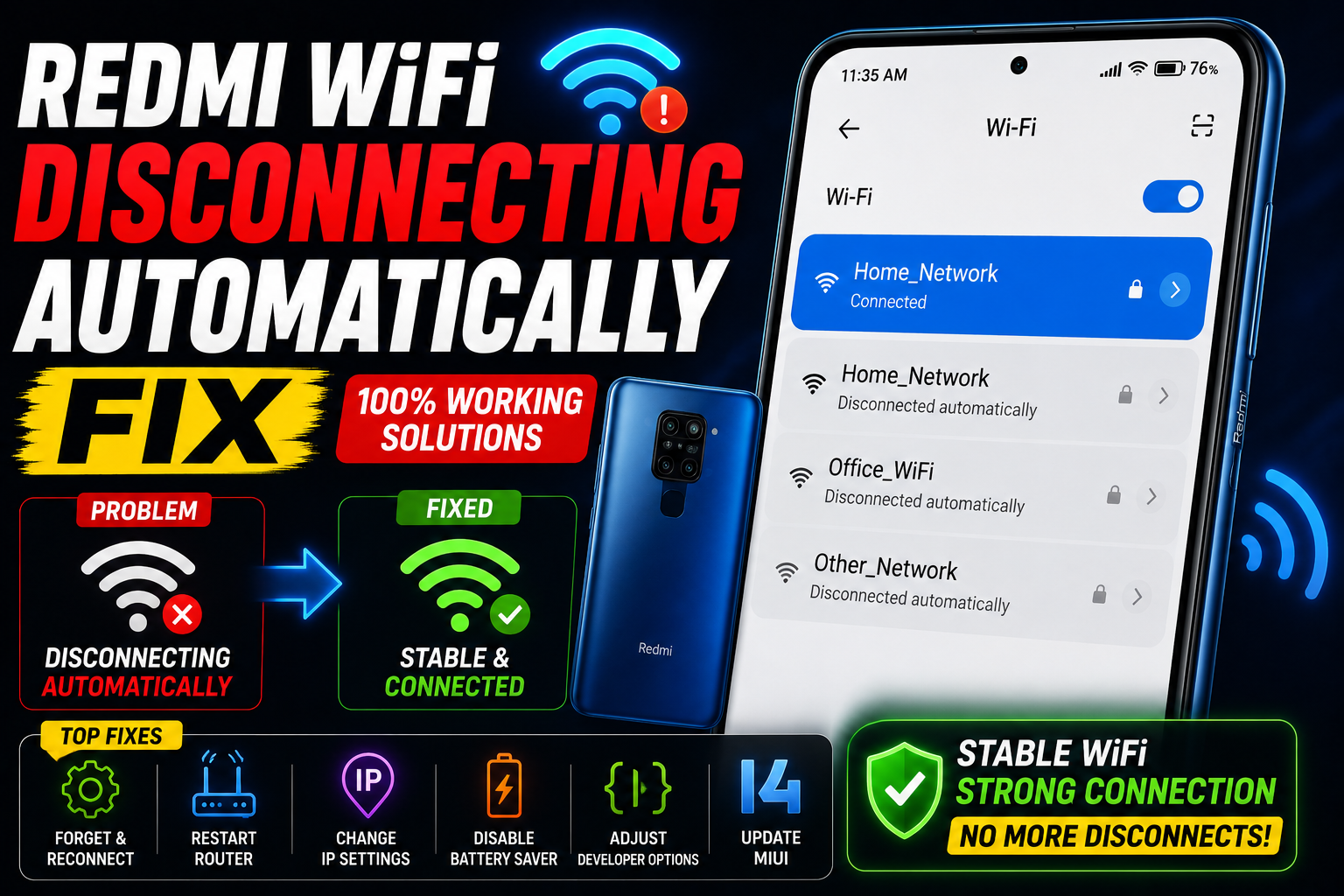
Redmi WiFi Disconnecting Automatically — Here’s the Real Fix
My Redmi Note 13 was driving me insane. I’d be mid-video call and the WiFi would just vanish. Not weak signal — completely gone. Then reconnect two seconds later like nothing happened. I tried everything obvious before finding the actual cause buried inside MIUI settings.
I bought my Redmi Note 13 Pro last year and about three weeks in, the WiFi started acting up. Not constantly — just enough to be annoying. A Teams call would freeze. Instagram would reload. The YouTube buffer wheel would spin for no reason when the router was literally four feet away.
At first I blamed the router. Rebooted it twice. Changed the WiFi channel. Even asked my ISP to send a technician. None of that helped, because the router wasn’t the problem. The problem was the Redmi itself — specifically the way MIUI (now HyperOS) handles WiFi in the background to save battery.
Here’s everything I found — both the quick fixes that work for most people, and the deeper settings that Xiaomi buries where most users never look.
Why Redmi WiFi Keeps Disconnecting
Redmi phones running MIUI or HyperOS are very aggressive about battery optimization. That’s generally a good thing — it’s why Redmi phones have impressive battery life. But it becomes a problem when the system decides that maintaining a WiFi connection in the background is “wasteful” and cuts it off when the screen turns off or when an app isn’t actively using it.
Beyond MIUI’s aggressive power management, there are a few other common causes worth knowing:
Does your WiFi only disconnect when the screen turns off? Or does it drop even while you’re actively using the phone? Screen-off drops = MIUI battery optimization (Fix 1 and Fix 2 below). Drops during active use = router/network issue or hardware problem. This distinction saves you a lot of troubleshooting time.
The Fixes — Try These in Order
This is the number one cause of Redmi WiFi disconnecting overnight or when the screen is off. MIUI has a setting that tells the phone to disconnect from WiFi when sleeping to save battery — and it’s often enabled by default. The fix is one toggle and takes 30 seconds.
- Open Settings → WiFi
- Tap the three dots (⋮) in the top right corner
- Tap “Advanced” or “Additional settings”
- Find “Keep WiFi on during sleep” or “WiFi sleep policy”
- Change it to “Always” — not “Only when charging” and not “Never”
- Lock your screen for 5 minutes and check if the connection holds
On phones running HyperOS (Xiaomi 14 series, newer Redmi models), this option may be under Settings → WiFi → WiFi+ → disable “WiFi+” entirely. HyperOS moved several settings around compared to MIUI 13/14.
MIUI’s battery optimization doesn’t just manage the WiFi connection — it also kills the apps using it. When MIUI decides to put WhatsApp or your browser into “deep sleep,” those apps lose their network connection. The WiFi might technically still be on, but nothing can use it. Fixing this requires telling MIUI to leave your key apps alone.
- Go to Settings → Apps → Manage Apps
- Tap the app that keeps losing connection (WhatsApp, browser, etc.)
- Tap “Battery Saver” or “Battery”
- Select “No restrictions” — this tells MIUI not to kill it in the background
- Repeat for all apps that need a stable connection: WhatsApp, Gmail, Telegram, browser
- Also go to Settings → Battery → Battery Saver and make sure it’s not set to automatically activate
WiFi+ is a Xiaomi feature that automatically switches between WiFi and mobile data based on which it thinks is faster. Sounds useful — and it’s not, at least not in practice. What it actually does is cause your phone to drop the WiFi connection the moment it detects the signal dip slightly, then switch to mobile data, then switch back. You experience this as WiFi randomly disconnecting even when the router is nearby.
- Go to Settings → WiFi
- Tap “WiFi+” at the bottom of the WiFi screen (or under Additional Settings)
- Toggle WiFi+ OFF completely
- On HyperOS: Settings → WiFi → WiFi+ → turn off
- You’ll get a warning that “speed may be affected” — ignore it and disable anyway
“WiFi+ sounds like a premium feature. In reality it’s the single most common reason Redmi WiFi drops randomly — and Xiaomi hides it two menus deep where most people never look.”
A corrupted saved WiFi profile causes reconnect loops that look like random disconnects. The phone connects, something in the saved profile doesn’t match, it disconnects, tries again, disconnects again. Forgetting the network and reconnecting from scratch clears this entirely.
- Go to Settings → WiFi
- Tap your network name → tap “Forget”
- Also restart your router (unplug for 30 seconds, plug back in)
- Restart your Redmi phone
- Reconnect to WiFi by entering the password fresh
- Monitor for 30 minutes — this alone fixes the issue more often than you’d expect
Most modern routers broadcast both 2.4GHz and 5GHz bands, sometimes under the same network name. When your Redmi switches between bands — which it does automatically as you move around — it briefly drops the connection. If your router has band steering enabled, the phone and router constantly negotiate which band to use. This negotiation causes the drops you’re seeing.
- Log into your router admin panel (usually 192.168.1.1 or 192.168.0.1 in your browser)
- Separate the 2.4GHz and 5GHz networks into different SSIDs — give them different names like “HomeWiFi_2G” and “HomeWiFi_5G”
- On your Redmi, connect specifically to one band — use 5GHz if you’re close to the router, 2.4GHz if farther away
- If you can’t access router settings: forget both networks, then reconnect only to the one that’s more stable in your location
If you live in an apartment building or area with many WiFi networks, your router might be sharing its channel with several neighbours. This congestion causes interference that makes your connection unstable. Switching to a less crowded channel can make a dramatic difference — and takes 2 minutes to do.
- Download WiFi Analyzer (free on Play Store) on your Redmi
- Open it and look at the channel graph — see which channels are least occupied
- Log into your router and change the WiFi channel to a less crowded one (channels 1, 6, or 11 for 2.4GHz; any channel above 36 for 5GHz)
- Save the router settings and reconnect your Redmi
Beyond WiFi+, Redmi phones also have a “Smart Network Switch” or “Adaptive WiFi” feature that automatically switches to mobile data when WiFi performance drops below a certain threshold. The threshold Xiaomi sets is too aggressive — it often switches to data when the WiFi is perfectly usable. Turn this off.
- Settings → WiFi → Additional settings (or Advanced)
- Look for “Switch to mobile data automatically” or “Smart network switch”
- Toggle it OFF
- On some MIUI versions: Settings → SIM cards & mobile networks → scroll down to find “Smart data switch” — turn off
- Also check Settings → More connection settings → any “data switching” or “network assist” toggle
Several Redmi models — especially the Note 12 series and Note 13 series — had known WiFi stability bugs in specific MIUI versions that were patched in later updates. If you haven’t updated in a while, a system update might be all you need. Xiaomi does push WiFi driver fixes as part of system updates, though they rarely announce it specifically in the changelog.
- Settings → About phone → MIUI version (or HyperOS version)
- Tap “Check for updates”
- If an update is available, download it over WiFi and install
- After updating, re-do steps 1, 2, and 3 above — updates sometimes reset these settings to default
- If no update is available and your WiFi still drops: check Xiaomi’s community forum (en.miui.com) for known bugs on your specific model and MIUI build
If the drops continue after the above fixes, a network settings reset clears all WiFi configurations, mobile data settings, Bluetooth pairings, and VPN configs back to factory state. It doesn’t touch your apps, photos, or personal data — only network-related settings. This resolves corruption in the network stack that individual settings changes can’t fix.
- Settings → About phone → Backup & reset
- Tap “Reset Wi-Fi, mobile & Bluetooth” or “Reset network settings”
- Confirm the reset
- Your WiFi passwords will be cleared — you’ll need to reconnect and re-enter the password
- Re-pair Bluetooth devices after the reset
- Then repeat Fix 1 (sleep setting), Fix 3 (WiFi+), and Fix 7 (smart switch) since the reset restores defaults
VPN apps, antivirus apps, and ad-blocker apps that use Android’s VPN interface can interfere with your WiFi connection. They create a virtual tunnel through which all data flows — and if that tunnel has issues, your connection drops even though WiFi itself is fine. I’ve seen this with free VPNs especially, which have unreliable servers that disconnect constantly.
- If you have a VPN app installed: turn it off completely and test WiFi stability for an hour
- Check Settings → More connection settings → VPN — remove any VPN profile you don’t recognise
- Apps like NetGuard, AdGuard, or any “DNS changer” app can cause the same issue — temporarily disable them to test
- If WiFi is stable after disabling the VPN: the VPN app is the cause. Switch to a more reliable paid VPN or use it only when needed
This one is less common but worth trying if nothing else works. Android has a hidden developer option that throttles how often the phone scans for WiFi networks. When scan throttling is on, the phone scans less frequently — but this can sometimes cause it to miss reconnect signals and stay disconnected longer than necessary. Disabling it can improve reconnection speed and stability.
- First, enable Developer Options: Settings → About phone → tap “MIUI version” or “HyperOS version” seven times until you see “You are now a developer”
- Go to Settings → Additional settings → Developer options
- Scroll down and find “WiFi scan throttling”
- Toggle it OFF
- Also look for “WiFi enhanced connectivity” — toggle this ON if available
- Restart your phone and test
Quick Reference — Match Your Symptom
| What’s Happening | Most Likely Fix |
|---|---|
| WiFi drops when screen turns off | Fix 1 (sleep policy) + Fix 2 (battery optimization) |
| WiFi switches to mobile data randomly | Fix 3 (WiFi+) + Fix 7 (smart network switch) |
| Drops even when close to router | Fix 4 (forget & reconnect) + Fix 5 (lock to one band) |
| Disconnects with multiple bars showing | Fix 6 (change WiFi channel) — congestion issue |
| Started after MIUI / HyperOS update | Fix 8 (check for newer update) — may be a known bug |
| Only certain apps lose connection | Fix 2 (battery restrictions for those apps specifically) |
| VPN is installed and drops happen often | Fix 10 (disable VPN to test) — likely the culprit |
| Nothing above helped, still dropping | Fix 9 (reset network settings) then Fix 11 (developer options) |
Things That Won’t Actually Fix It
If the problem is in MIUI’s battery optimization settings, rebooting your router does nothing. The router is fine — it’s the phone dropping the connection by choice. I rebooted my router four times over two days before realising the router was never the problem. Check the phone settings first.
Several people in Redmi community forums reported spending money on new routers only for the problem to persist on their Redmi while every other device on the same router worked fine. If other devices (laptop, other phones, tablets) connect reliably to the same WiFi, the problem is definitely the Redmi, not the router.
Apps claiming to fix or boost WiFi on Android are almost universally useless. They can’t access the system-level settings that actually control WiFi behavior — only going into the phone’s own settings menus can do that. Don’t install them; some of them are worse than useless, running background processes that create additional battery drain.
If your Redmi has two SIM cards installed, make sure “Preferred data SIM” isn’t fighting with WiFi. Some MIUI versions have a feature that automatically uses the SIM with the better signal for data when WiFi is considered weak — even if WiFi is actually fine. Go to Settings → SIM cards & mobile networks → check that “Data roaming” and “Smart data switch” are configured correctly for your setup.
What Finally Fixed My Redmi Note 13
After three days of troubleshooting, my fix turned out to be Fix 1 and Fix 3 working together. WiFi+ was enabled by default and kept switching my phone to mobile data whenever it decided the WiFi signal wasn’t optimal — which apparently happened a lot in my bedroom even though I was 3 metres from the router. The “keep WiFi on during sleep” setting was also set to “Only when charging” by default, which meant every time the screen turned off without the phone being plugged in, the WiFi dropped.
Two setting changes. Five minutes total. The WiFi has been stable for three months since.
The frustrating part is that both of these settings are in MIUI by design — they’re intentional power-saving measures. But their thresholds are set too aggressively for real-world use. Xiaomi optimises for benchmark battery scores; you need to go in and tune it for actual usability.
WiFi sleep policy → Always ✓ → Battery optimization for key apps → No restrictions ✓ → WiFi+ → OFF ✓ → Smart network switch → OFF ✓ → Forget and reconnect to your WiFi network ✓. Do these five things first. They fix Redmi WiFi disconnecting in the vast majority of cases without needing to touch router settings or do a reset.
Start with Fix 3 — turn off WiFi+. It’s Xiaomi’s most aggressive automatic switching feature and the most common cause of Redmi WiFi randomly dropping. Then do Fix 1 (sleep policy to “Always”) and Fix 2 (no battery restrictions on your key apps). These three changes together resolve the problem for most Redmi users.
If those don’t work, go deeper: forget and reconnect to your network, check whether the router band-switching is causing drops, and do a network settings reset as a last software step. The hardware is rarely the issue — Redmi WiFi chips are reliable. It’s almost always MIUI/HyperOS settings working exactly as Xiaomi intended, just not the way you want them to.