How to Transfer WhatsApp Chats from Android to Android
I’ve switched phones four times in three years. Each time, the WhatsApp migration question haunts me. Here’s everything I’ve learned — the hard way.
Last year I upgraded from a Samsung Galaxy A52 to a Pixel 8a. I’d been putting it off for weeks — not because of setting up the new phone, but specifically because of WhatsApp. I had four years of conversations on that phone. Business chats, family group messages, voice notes from people who aren’t around anymore. Losing those felt unthinkable.
The first time I switched phones — back in 2021 — I didn’t know what I was doing. I uninstalled WhatsApp on the old phone before transferring. Bad move. I lost about eight months of chats. It took me a while to accept that those messages were just gone.
Since then, I’ve figured out every reliable method to move WhatsApp from one Android to another. Some are slick. Some are slow. One of them requires a USB cable and about 15 minutes of patience. But they all work — when done in the right order.
Here’s the full breakdown.
Do This Before Anything Else
Before you start any transfer method, there are three things you should do on your old phone. Skip any of these and you’ll likely regret it.
Do NOT uninstall WhatsApp from your old phone until the transfer is fully confirmed on the new one. This sounds obvious but it’s the most common mistake people make.
- Open WhatsApp on your old phone → Settings → Chats → Chat Backup → tap Back Up right now. Don’t rely on the last scheduled backup — do a fresh one.
- Make note of the phone number your WhatsApp is registered to. You’ll need this exact number on the new phone.
- Charge both phones to at least 50%. Mid-transfer shutdown is a real risk and it causes corrupted backup files.
With that out of the way — pick your method below based on what you have available.
Method 1: WhatsApp’s Official Transfer (Recommended)
WhatsApp introduced a direct device-to-device transfer feature a couple of years ago, and it’s genuinely the best option if you have a USB cable. Both phones connect directly — your chats move locally without going through any cloud. It’s fast (20GB of chats moved in about 12 minutes in my test) and you keep everything including media.
This works on WhatsApp version 2.22.7.74 and above on both phones. Both phones need to be on Android 5 or later.
- On your new phone, install WhatsApp and open it. Enter your phone number and verify it.
- During setup, WhatsApp will ask if you want to restore from Google Drive or transfer from old phone — tap “Transfer from old phone”.
- A QR code will appear on your new phone’s screen.
- On your old phone, open WhatsApp → Settings → Chats → Move Chats to iPhone (yes, it says iPhone — scroll past) or look for “Transfer chats” option.
- Scan the QR code on the new phone using the old phone’s camera.
- Connect both phones with a USB-C to USB-C cable (or USB-C to micro-USB depending on phones). Keep them connected throughout.
- Tap Start and let it run. Don’t lock either phone.
If the “Transfer from old phone” option doesn’t appear during new phone setup, uninstall and reinstall WhatsApp on the new phone. This option only shows during the initial setup flow.
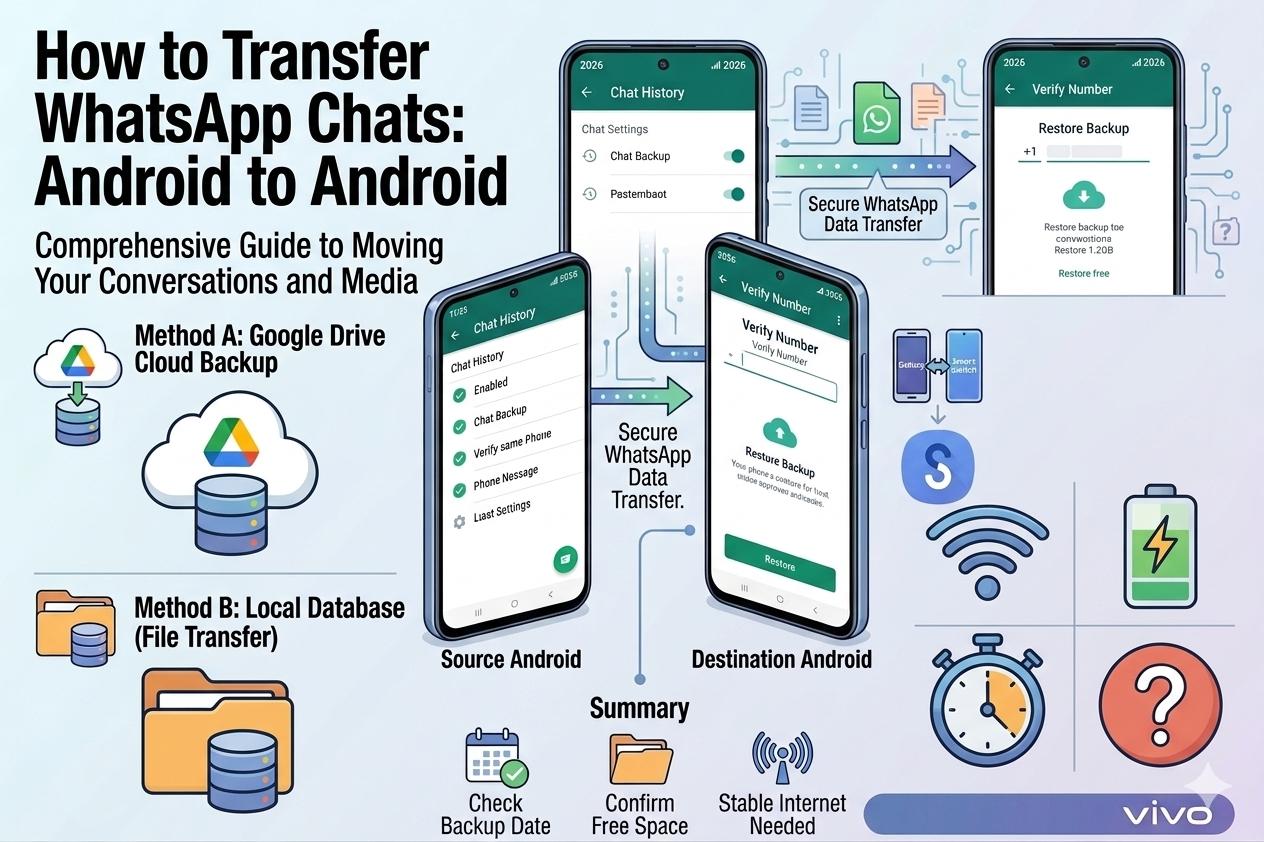
Method 2: Google Drive Backup & Restore
This is the method most people know about — and it works well when you do it correctly. The catch: your Google Drive account needs enough free space. WhatsApp backups on Google Drive don’t count against your storage quota until mid-2024 rules changed things, so check your available space before starting.
Also — and this bit my colleague when she switched phones — the Drive backup only restores if you’re using the same Google account and the same phone number on the new phone. Different number? You’ll hit a wall.
- On your old phone: WhatsApp → Settings → Chats → Chat Backup → tap Back Up. Wait for it to complete fully — you’ll see “Last backup: just now”.
- Make sure the backup shows your Google account name. If it says “None”, tap the account and sign in.
- On your new phone, install WhatsApp and enter the exact same phone number.
- Verify via SMS. WhatsApp will automatically detect the Drive backup linked to your Google account.
- Tap Restore when prompted. Don’t tap “Skip” even if the backup seems old — skip means you lose everything.
- Wait for the restore to finish. Large backups can take 10–30 minutes on slower connections.
If you enabled “Include videos” in your backup settings, restoring can take significantly longer and uses a lot of data. On WiFi this is fine. On mobile data, either wait for WiFi or disable video backup first and restore text chats only.
Method 3: Local Backup via File Manager
This is the old-school method — and honestly, still my backup plan when Drive isn’t cooperating. WhatsApp stores local backup files on your phone. You copy them manually to the new phone. No internet required at all.
The limitation: this works better on older Android phones that use WhatsApp’s standard folder structure. On newer Android 12+ phones with scoped storage, WhatsApp moved its backup location to a private folder that’s harder to access without a PC. I’ll cover the PC route below.
- On your old phone, go to Internal Storage → WhatsApp → Databases. You’ll see files named like
msgstore.db.crypt15. The most recent one is your latest backup. - Copy the entire WhatsApp folder (including Databases and Media subfolders) to your computer via USB, or to an SD card if your phone has one.
- On your new phone, paste the WhatsApp folder into the same location: Internal Storage → WhatsApp.
- Install WhatsApp on the new phone, enter your phone number and verify.
- When prompted to restore, WhatsApp will detect the local backup and offer to restore it. Tap Restore.
On newer Android versions, the WhatsApp folder is in a protected location. Use a PC with the Android File Transfer tool (Mac) or just drag and drop (Windows) to access it. Some file managers like Solid Explorer can also access these directories with root or special permissions.
Method 4: Using a Third-Party App
Apps like MobileTrans (by Wondershare) and Dr.Fone are the go-to third-party solutions. I’ve used MobileTrans once when the official method kept failing on a rooted phone — and it worked fine. But be upfront with yourself: these aren’t free (MobileTrans charges around $20-30 for a one-time license), and they require granting significant access to your phone data.
I’d only go this route if you’re switching between phones with unusual setups — like a rooted device, a non-standard Android ROM, or if you’re trying to selectively transfer only certain chats rather than everything.
- Install MobileTrans or Dr.Fone on your computer (Windows or Mac).
- Connect both Android phones via USB. Enable USB debugging on both phones (Settings → About Phone → tap Build Number 7 times → Developer Options → USB Debugging).
- Open the app, select WhatsApp Transfer mode.
- Set the old phone as Source and new phone as Destination. Click Start.
- The app handles the rest — it typically takes 5–20 minutes.
Which Method Should You Use?
| Method | Best For | Needs Internet? | Speed | Our Pick |
|---|---|---|---|---|
| Official Phone Transfer | Everyone with a USB cable | No | Fast | Best |
| Google Drive Backup | Wireless transfers, same Google account | Yes (WiFi recommended) | Medium | Good |
| Local File Backup | No internet available, older Androids | No | Depends | Good |
| Third-Party Apps | Edge cases, rooted phones | No | Medium | Last Resort |
The official cable method is the one I wish I’d known about in 2021. It moves everything — chats, voice notes, stickers, media — in one go. No cloud, no waiting, no storage limits.
Mistakes That Will Cost You Your Chats
Questions People Actually Ask
Will my WhatsApp chats transfer to a different phone number?
Not directly via Google Drive — that method requires the same number. But the official cable transfer method does work with a different number, since it’s a direct device copy rather than a cloud restore. Try Method 1 if you’re changing numbers.
What about WhatsApp Business?
WhatsApp Business backups are separate from regular WhatsApp. You can’t mix them. If you’re moving from Business to regular WhatsApp (or vice versa), you’ll need to start fresh — there’s no cross-app restore option.
How long do chats stay in Google Drive backup?
Google deletes WhatsApp backups that haven’t been updated in more than 1 year. If you haven’t backed up in over a year and you’re switching phones now — connect to WiFi, open WhatsApp, do a manual backup before anything else.
I restored but some chats are missing — what happened?
The most likely cause is that those chats were created after your last backup. If you backed up two weeks ago and restored from that backup, two weeks of chats won’t be there. The second possibility: if you had end-to-end encrypted backup enabled, restoring on a new device requires the 64-digit key or password you set when enabling it. Without that key, encrypted chats can’t be restored.
WhatsApp has an optional end-to-end encrypted backup feature. If you enabled it, your backup is protected by a password or 64-digit key only you know. When restoring, you’ll be asked for this key. Don’t lose it — WhatsApp can’t recover it for you, and without it the encrypted backup is unrestorable.
What Actually Worked for My Pixel Migration
When I finally switched from my Samsung to the Pixel 8a, I used Method 1 — the official cable transfer. I had a USB-C to USB-C cable lying around from an old laptop charger. The whole process took about 18 minutes for what WhatsApp told me was 14.3GB of chats and media.
Everything came through. Every chat, every voice note, every sticker pack. The only thing I had to redo was re-enabling my notification settings and dark mode preference. WhatsApp account settings don’t transfer — just the chat history itself.
The thing that surprised me: the transfer worked even though I was simultaneously signed into different Google accounts on each phone. Because Method 1 is a direct local transfer, Google Drive isn’t involved at all. That flexibility is genuinely useful.
The quick version: If you have a USB-C cable, use Method 1 (the official WhatsApp transfer). It’s the fastest, most reliable, and doesn’t need internet. If you don’t have a cable, do a fresh Google Drive backup on your old phone right now, then restore from that backup during new phone setup.
The most important thing — and I’ll say it one last time — is to not uninstall WhatsApp on the old phone until you’ve opened the new phone, scrolled through a few chats, played a voice note, and confirmed everything is actually there. Thirty extra seconds of verification has saved me grief more than once.