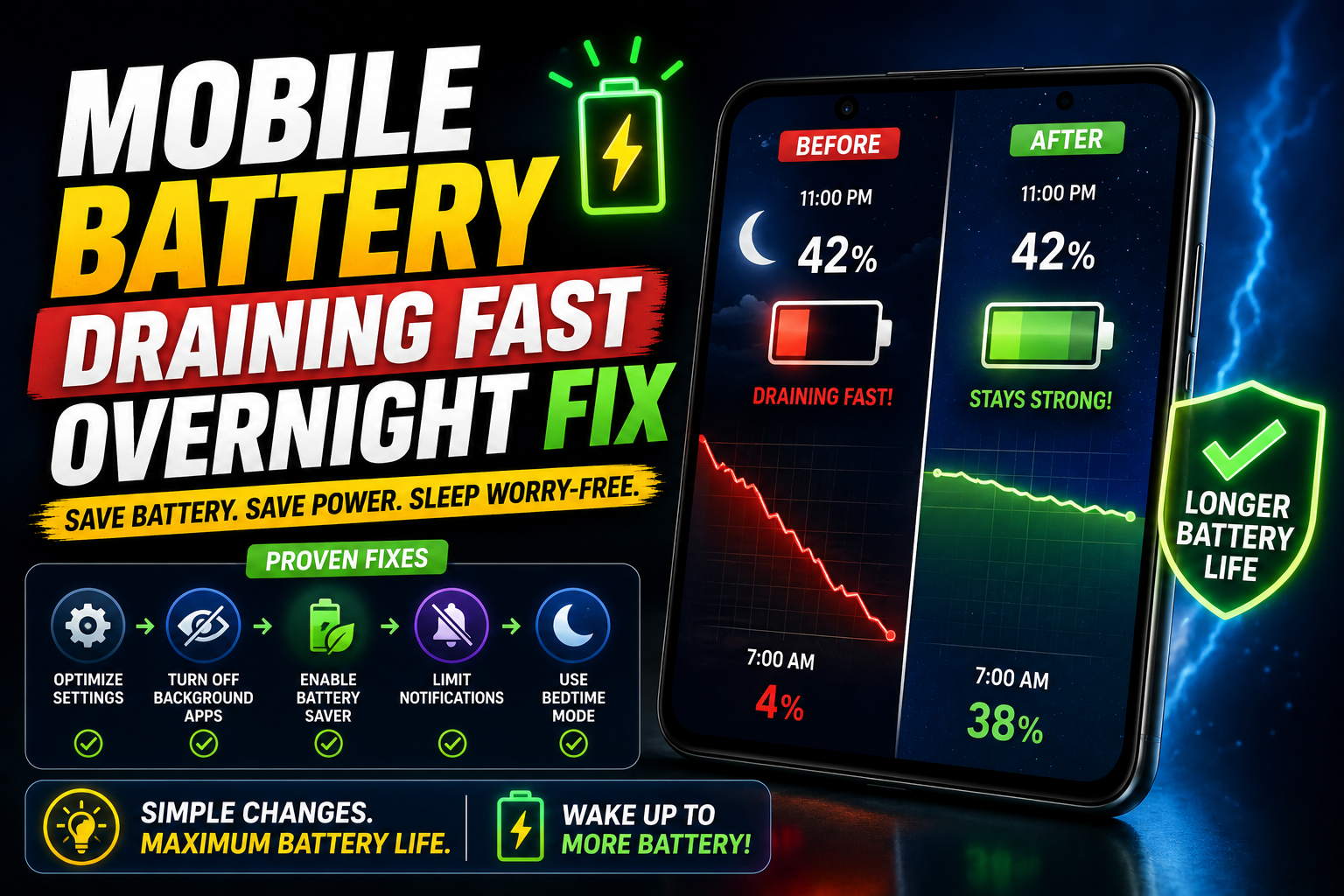
I put my phone on charge at 100% before sleeping. Woke up at 6am, unplugged it, and by 8am it was at 52%. The phone hadn’t left the nightstand. Something was eating the battery all night — and it took me three days to figure out what.
The thing about overnight battery drain is that it’s invisible. Your phone is sitting there doing apparently nothing — screen off, no notifications, just charging. And yet in the morning it’s at a fraction of what you’d expect. The battery is clearly working hard at something. You just can’t see what.
Normal overnight drain on a healthy phone should be 2–5% if you leave it unplugged, or it should hold near 100% if you charge it and leave it plugged in. Anything significantly more than that — especially 20, 30, 40% drain overnight without active use — means something is wrong and fixable.
I went through this for a week before solving it. Here’s every cause and every fix, starting with the most common ones and going deeper for the stubborn cases.
What’s Actually Draining Your Battery at Night
The phone isn’t doing nothing while you sleep. Apps are syncing, location services are pinging, push notifications are being fetched, system maintenance tasks are running. On a healthy phone, all of this is managed efficiently enough that the drain is negligible. When something goes wrong, one of these background processes starts consuming far more power than it should.
Before fixing anything, identify what’s draining your battery. On Android: Settings → Battery → Battery Usage — look at what consumed the most percentage in the last 24 hours. On iPhone: Settings → Battery → Battery Usage by App (scroll to see all apps). If one app shows unusually high consumption, that’s your starting point — not random settings changes.
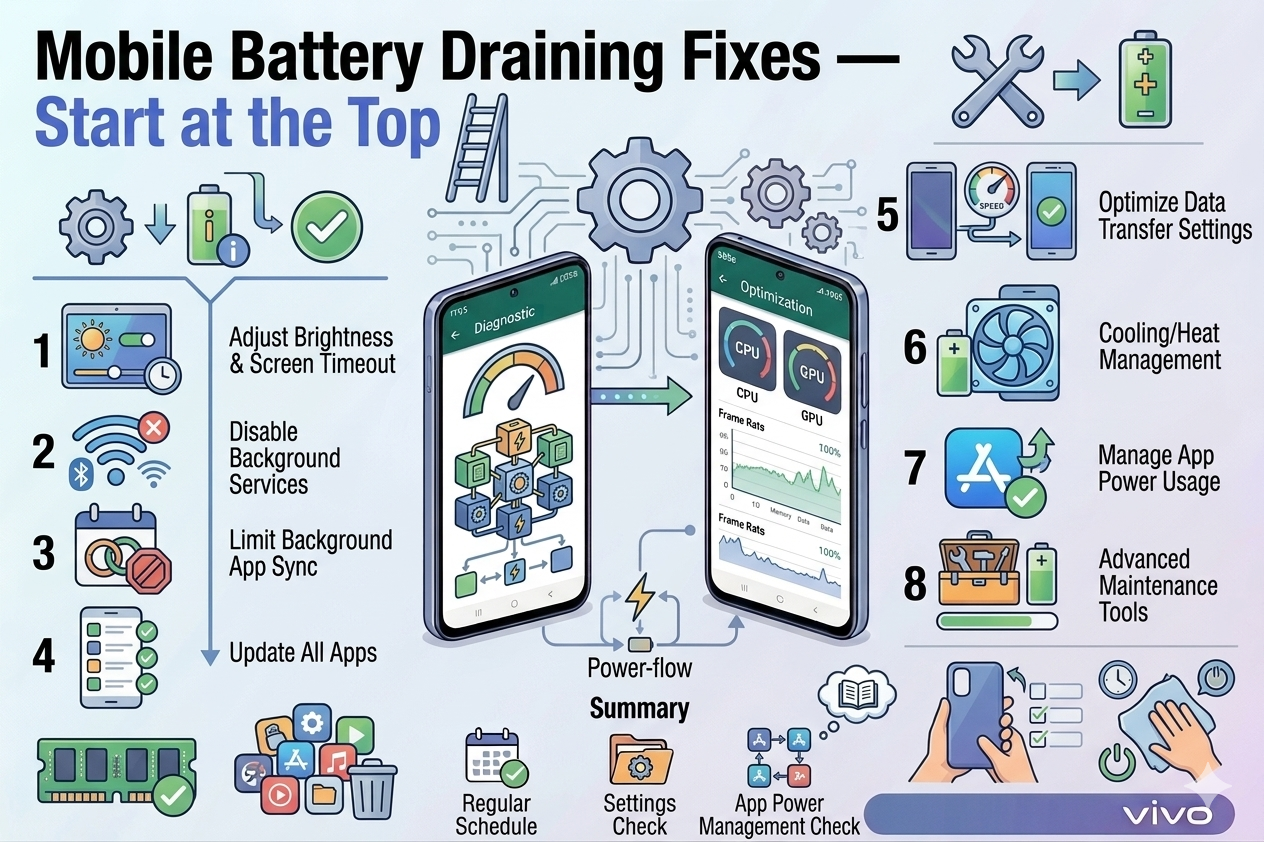
The Fixes — Start at the Top
This is the nuclear option — but it works 100% of the time. Airplane mode cuts all radio signals: no mobile data, no WiFi, no Bluetooth, no background sync. Every app that was waking up to fetch data goes silent. If your battery drain stops with airplane mode on, you know the cause is network-related background activity.
- Swipe down notification panel → tap Airplane Mode
- Alternatively: use your phone’s built-in Sleep/Bedtime mode which silences notifications and can restrict background activity
- Android: Settings → Digital Wellbeing → Bedtime Mode → schedule it to activate automatically
- iPhone: Settings → Focus → Sleep → configure scheduled sleep hours
- If battery holds overnight with airplane mode — you know it’s a background connectivity issue, proceed to Fix 2
One misbehaving app is the cause of overnight battery drain more often than any other single factor. The fix isn’t deleting the app — it’s restricting its background access specifically.
- Android: Settings → Battery → Battery Usage → look for any app with unusually high % usage overnight
- Tap the suspicious app → Battery → select “Restricted” for background usage
- iPhone: Settings → Battery → scroll down to Battery Usage by App → tap “Show Activity” to see background vs foreground usage
- Settings → General → Background App Refresh → turn off for specific apps that don’t need it
- Common culprits: Facebook, Instagram, TikTok, WhatsApp (if you have many unread chats), news apps, weather apps with always-on location
GPS and location services are among the most battery-intensive things a phone can run. Many apps request “Always On” location access when they only need it “While Using.” Even when your screen is off at night, these apps ping your location continuously.
- Android: Settings → Location → App Permissions → review every app set to “Allow all the time”
- Change social media apps, shopping apps, and any non-navigation app from “Always” to “Only while using app”
- iPhone: Settings → Privacy & Security → Location Services → review each app set to “Always”
- Change to “While Using” or “Ask Next Time” for any app that doesn’t genuinely need background location
- Navigation apps (Google Maps, Waze) can stay on Always if you use them actively — change everything else
“Your phone at midnight isn’t doing nothing. It’s syncing eight apps, pinging your location for four of them, and refreshing feeds for five more. Turning most of that off is what fixes overnight drain.”
When your phone has a weak mobile signal — even one bar — it works much harder to maintain that connection, which drains battery significantly. If you sleep in an area with poor signal, turning off mobile data and relying on WiFi overnight can make a meaningful difference. If you have no WiFi either, airplane mode is the better choice.
- Pull down the notification panel → tap the Mobile Data icon to toggle it off
- Keep WiFi on if you want WhatsApp calls and messages to still come through
- Schedule this automatically: some Android phones support automated rules (Samsung Routines, MIUI Automation) to turn off mobile data at a set time
Background App Refresh allows apps to update their content while the phone is idle. It’s useful for some apps but most don’t need it at 3am. Turning it off globally (or selectively) stops apps from waking up the phone’s processor to fetch new content overnight.
- iPhone: Settings → General → Background App Refresh → set to Off or Wi-Fi Only
- Android: Settings → Battery → Battery Optimization → set aggressive optimization for apps you don’t need notifications from overnight
- Alternatively per-app: Settings → Apps → [App Name] → Battery → Background restriction
- Apps that can be safely restricted: social media, shopping, news, games, music streaming apps
- Apps to leave unrestricted: messaging apps (WhatsApp, SMS), phone, alarm clock
Sometimes what looks like “overnight drain” is actually the charger not charging. A cheap cable, a loose port connection, or a damaged charger can result in the phone showing “charging” but actually discharging slowly all night because the power input is less than the idle usage. You wake up to a depleted battery and assume something is draining it — but it was never actually charging.
- Watch the battery percentage for 5 minutes after plugging in — it should increase steadily, not hold flat or decrease
- Try a different cable — cheap or old cables lose efficiency even when they appear to work
- Clean the charging port: use a dry toothpick to gently clear dust and lint (the most common cause of slow charging)
- Try a different charger entirely — borrow one from a family member to test
- Check: Settings → Battery — look for charging status. Some phones show “Charging Slowly” which indicates a problem
Even when WiFi is turned off, Android phones often still scan for WiFi networks in the background to improve location accuracy. This drains battery silently. Same for Bluetooth scanning. Most people have no idea this feature exists.
- Android: Settings → Location → Location Services
- Turn off “Wi-Fi scanning” — this stops the phone scanning for networks even when WiFi is off
- Turn off “Bluetooth scanning” — same principle for Bluetooth devices
- This setting exists on Samsung, Xiaomi, Realme, and most Android phones — menu name may vary slightly
- On iPhone: Settings → Privacy → Location Services → System Services → turn off “Wi-Fi Networking”
Modern phones have a feature that learns your sleep schedule and slows charging to reach 100% just before you wake up — rather than charging to 100% at 1am and then sitting at 100% for 5 hours (which stresses the battery). This reduces overnight heat generation and actually extends battery lifespan.
- iPhone: Settings → Battery → Battery Health & Charging → Optimized Battery Charging → ON
- Samsung: Settings → Battery & Device Care → Battery → More Battery Settings → Protect Battery (caps at 85% to reduce stress)
- Xiaomi/MIUI: Settings → Battery → Scheduled Charging → set your wake time
- OnePlus: Settings → Battery → Optimized Charging → ON
- If not available: simply unplug the charger before you sleep and charge to ~80% instead of 100%
If your phone is more than 2–3 years old and the battery was never replaced, it may have degraded to the point where it simply can’t hold charge the way it used to — and no software fix will change that. A battery at 70% health drains noticeably faster than a new one even with identical settings.
- iPhone: Settings → Battery → Battery Health & Charging — anything below 80% needs replacement
- Android (Samsung): Dial *#0228# to access battery info (not available on all models)
- Android (general): Download AccuBattery (free app) — run it for a few charge cycles, it estimates your actual battery capacity vs original
- If health is below 80%: a battery replacement (official or reputable third-party) is the only real fix. Usually costs ₹1,500–4,000 in Pakistan and is worth it if the phone is otherwise good
A corrupted network configuration can cause the phone to constantly search for and switch between signals overnight — consuming significant battery in the process. Resetting network settings clears this and is safe (your photos and apps are unaffected, only WiFi passwords and Bluetooth pairings reset).
- Android: Settings → General Management → Reset → Reset Network Settings
- iPhone: Settings → General → Transfer or Reset iPhone → Reset → Reset Network Settings
- Reconnect to your WiFi network afterward (you’ll need the password)
- Re-pair any Bluetooth devices
- Monitor overnight drain for the next 2–3 nights after resetting
Sometimes a specific app has a bug in a particular version that causes it to run a background process indefinitely. This is especially common with social media apps after updates. If your battery usage screen shows one app consistently consuming 15–20% or more overnight, updating or reinstalling it often fixes the background loop.
- Go to Play Store / App Store → search the culprit app → Update if available
- If already on latest version: uninstall the app, restart the phone, reinstall fresh
- Monitor battery usage the following night
- If the same app keeps appearing as the top drainer: check the app’s reviews or Reddit for reports of the same issue — it may be a known bug waiting for a fix
If the overnight drain persists after everything above, a factory reset eliminates the possibility of a corrupted system process or accumulated software issue causing the drain. This is rare but legitimate.
- Before resetting: back up all photos to Google Photos or iCloud, note which apps you need to reinstall
- Android: Settings → General Management → Reset → Factory Data Reset
- iPhone: Settings → General → Transfer or Reset iPhone → Erase All Content
- Set up as a new phone (do NOT restore from backup immediately) and use for 2 nights to confirm drain is gone
- Then restore your apps and data selectively — this helps identify if a restored app brings back the problem
Which Fix for Which Situation
| Your Situation | Start With |
|---|---|
| Drain stops with Airplane Mode on | Fix 2 (find the app) + Fix 3 (location) + Fix 4 (mobile data) |
| One app showing 20%+ usage overnight | Fix 2 (restrict that app) then Fix 11 (update/reinstall it) |
| Phone is 3+ years old, problem is recent | Fix 9 (check battery health) — may need replacement |
| Plugged in all night but still low in morning | Fix 6 (charger/cable check) first — may not be draining, just not charging |
| Drain started after app update | Fix 11 (update or reinstall that specific app) |
| Drain started after OS update | Wait 3–5 days (normal post-update indexing), then Fix 5 if still ongoing |
| Multiple apps draining, no single culprit | Fix 3 (location) + Fix 5 (background refresh) + Fix 7 (scanning) |
| Nothing works, still draining heavily | Fix 12 (factory reset) after confirming Fix 9 (battery health is OK) |
Mistakes That Don’t Actually Help
Third-party battery saver apps almost universally make battery drain worse, not better. They run their own background processes to “kill” other apps, consuming resources in the process. Modern Android and iOS have built-in battery management that’s significantly better than any third-party cleaner. Uninstall these apps if you have them.
Swiping away all apps from recents throughout the day doesn’t save battery — it can actually increase drain. Android and iOS are designed to keep apps in memory so they don’t have to reload from scratch every time. Forcing a full reload uses more power than keeping them suspended. Only kill apps that are genuinely misbehaving according to Battery Usage stats.
Screen brightness matters when the screen is on. At night when the screen is off and sitting on your nightstand, screen settings are irrelevant. Overnight battery drain is entirely about background processes — not display settings. Dimming the screen won’t fix a misbehaving app running at full power while the screen is off.
Overnight battery drain for 3–5 days after a major Android or iOS update is actually normal. The OS runs indexing, reoptimization, and update-related tasks in the background — usually at night when the phone is idle. If the drain appeared after an update and wasn’t there before, wait 5 days before trying any fixes. It often resolves on its own as the post-update tasks complete.
What Was Draining My Battery
The culprit in my case was embarrassingly simple: the Facebook app. It had updated two weeks earlier and something in the new version was causing it to run location checks every few minutes all night — even though I never use Facebook’s location features. Battery Usage showed it consuming 28% of my battery overnight with the screen off.
Fix: restricted its background activity (Fix 2) and removed its “Always On” location access (Fix 3). Overnight drain dropped from 45% to 4%. Same phone, same settings everywhere else, just those two changes on one app.
Two weeks later, a Facebook update came through and the problem stopped entirely — confirming it was a bug in a specific version that got patched. But waiting for Facebook to fix it wasn’t something I was willing to do when the fix took five minutes.
Check Battery Usage and identify the top overnight drainer ✓ → Restrict that app’s background activity ✓ → Change all non-essential apps from “Always” location to “While Using” ✓ → Turn off WiFi and Bluetooth scanning ✓ → Enable Bedtime/Sleep mode or Airplane Mode ✓ → Verify charger is actually charging (watch % for 5 minutes) ✓. This checklist solves overnight battery drain for the vast majority of cases without needing to touch any other settings.
Start with Battery Usage — find the specific app consuming overnight power before changing any settings. Then restrict that app’s background access and location permissions. If that doesn’t resolve it, turn on Airplane Mode or Bedtime Mode to confirm the drain is network-related. Check your charger and cable if the phone was plugged in — you might not be draining, just not charging properly. And if your phone is 3+ years old, check battery health before spending time on software fixes. Sometimes the battery just needs replacing — and that’s a ₹2,000 fix that makes a 3-year-old phone feel brand new.