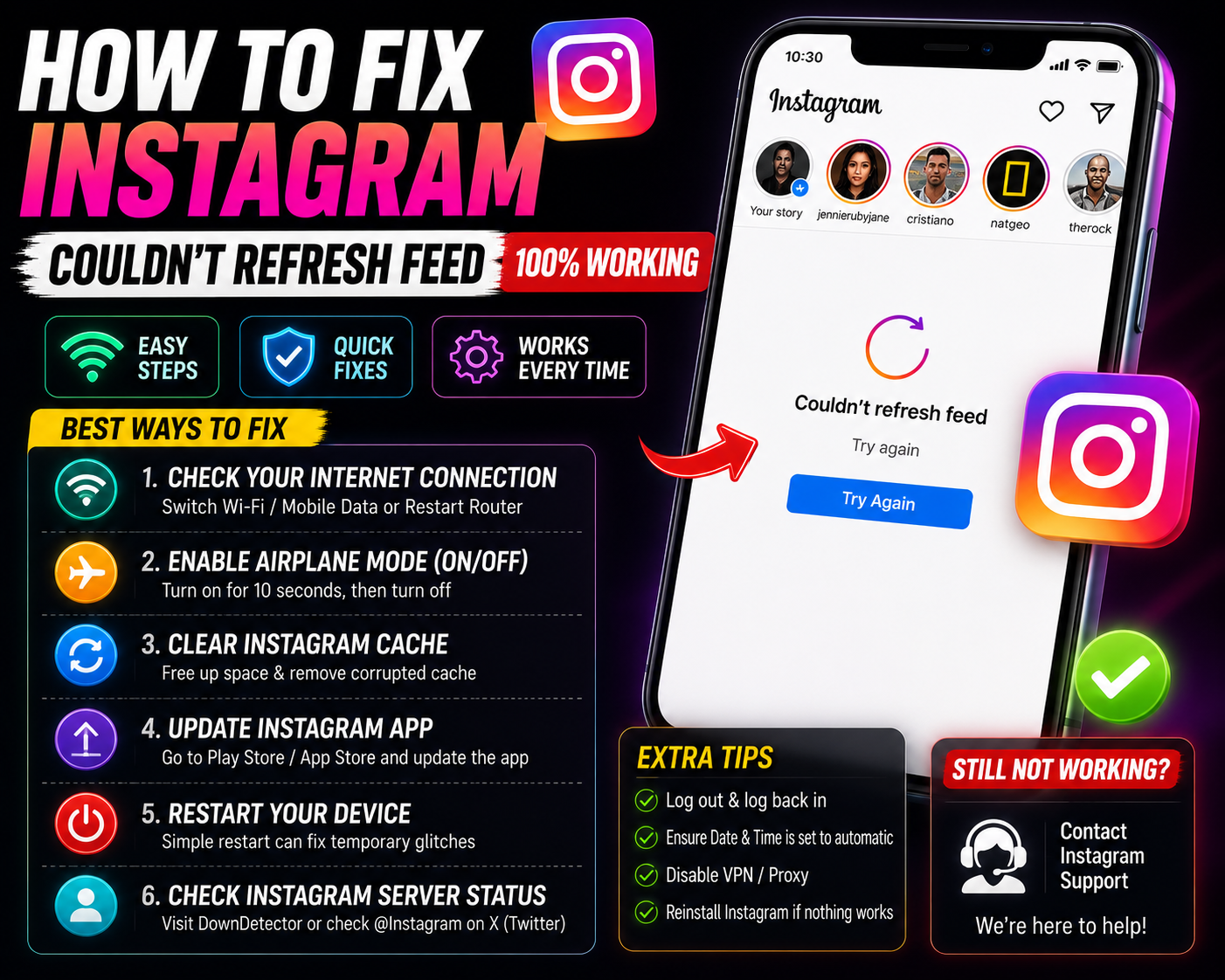
Instagram “Couldn’t Refresh Feed” — What’s Actually Going On
It was 9pm and I’d just settled in to scroll. Pulled down to refresh. Nothing. Just that grey message staring back at me. I’d had WiFi all day, every other app was working fine, and Instagram had decided it was done refreshing my feed for absolutely no obvious reason.
The “Couldn’t refresh feed” error on Instagram is one of the most misleading error messages in tech. It says “check your internet connection” — so you do, and the connection is perfectly fine. You open YouTube, it loads instantly. WhatsApp messages are coming through. Every other app works. But Instagram sits there telling you your internet is the problem when it clearly isn’t.
I’ve seen this error in three different situations: on my phone during a perfectly normal evening, on a friend’s account that had been temporarily flagged, and on a work phone after an Instagram app update that broke something in the cache. All three looked identical on the screen. All three had completely different causes and fixes.
That’s the thing nobody tells you — “Couldn’t refresh feed” is a catch-all error. It covers about eight different actual problems. Finding the right fix depends on knowing which one you’re dealing with. Here’s how to work through it.
What the Error Actually Means
Instagram shows this message whenever it can’t load new posts for your feed. That can happen because of a genuine internet problem, but it can also happen because Instagram’s own servers are down, because the app’s cached data is corrupted, because your account has been rate-limited, or because a recent app update broke something on your specific phone model.
The error message doesn’t distinguish between any of these — it just shows the same grey text regardless of the actual cause.
Before trying anything else, open a browser on your phone and go to downdetector.com/status/instagram. If Instagram’s servers are having issues, hundreds of other users are reporting the same thing and no fix on your end will help — you just have to wait it out. This single check eliminates 20% of cases immediately.
The Fixes — Most Likely Causes First
It sounds too simple, but a full force close — not just swiping away from the app — actually resolves the error in a surprising number of cases. Instagram sometimes gets stuck in a state where it’s trying to reconnect in a loop and can’t get out. Killing the process entirely breaks the loop.
- Android: Settings → Apps → Instagram → tap Force Stop → confirm → reopen Instagram
- iPhone: Swipe up from the bottom (or double-tap Home) → find Instagram in the app switcher → swipe it up to close it fully → reopen
- Wait a full 10 seconds after closing before reopening — give it time to actually terminate
- When you reopen, don’t immediately refresh — let the feed load on its own first
- If it loads: done. If not, move to the next fix
Instagram stores a lot of temporary data — cached posts, images, feed data. When this cache gets corrupted (which happens more often after app updates), Instagram can’t load fresh content because it keeps running into the broken cached data. Clearing the cache forces it to start fresh. Your account, photos, and messages are completely unaffected.
- Android: Settings → Apps (or Application Manager) → Instagram → Storage → tap Clear Cache
- Do NOT tap “Clear Data” — that logs you out and removes your account from the app
- iPhone: There’s no manual cache clear. Instead: Settings → General → iPhone Storage → Instagram → Offload App → then reinstall from the App Store (your account stays logged in)
- After clearing: open Instagram and wait 15–20 seconds for it to rebuild the cache before scrolling
- This fix works especially well if the error appeared after an Instagram update
Instagram’s login session can expire or get corrupted without showing any obvious error — the app just stops being able to authenticate your feed requests properly. Logging out and back in creates a fresh session token. This is especially worth trying if you haven’t logged out of Instagram in months or years.
- Tap your profile icon → hamburger menu (☰) → Settings and Privacy
- Scroll to the bottom → tap Log out
- Once logged out, wait 30 seconds
- Log back in with your username and password
- If you use “Continue with Facebook” or “Continue with Google” — use those same login methods, not manual username/password (different session)
- Note your password before logging out if you haven’t typed it in a while — this is the most common thing people forget
Instagram updates frequently — sometimes multiple times a week. Specific app versions have had feed-refresh bugs that were patched in subsequent releases. If you’re on an older version, especially one from a few weeks ago, updating might be all you need. Conversely, if the error started right after an update, there may be a newer patch already available that fixes it.
- Android: Open Google Play Store → search Instagram → tap Update if available
- iPhone: App Store → tap your profile icon (top right) → scroll down to find Instagram → update
- If no update is available and you just updated recently: check r/Instagram on Reddit to see if others on your device report the same error after the same version — known bugs get tracked there quickly
- After updating: clear the cache (Fix 2) before reopening — sometimes the update doesn’t fully replace corrupted old cache files
“The error says ‘check your internet connection’ and your internet is completely fine. That’s Instagram covering for what could be six different actual problems. The message is just the default — not a diagnosis.”
Even if your WiFi looks connected and other apps work, Instagram sometimes loses its specific connection to Instagram’s CDN (the servers that deliver feed content). Switching to mobile data — or vice versa — gives Instagram a completely fresh network path. It’s the quickest test to determine whether the issue is network-specific.
- If you’re on WiFi: turn off WiFi from the quick settings panel → wait 5 seconds → try refreshing Instagram on mobile data
- If you’re on mobile data: connect to WiFi and try again
- If it works on one but not the other: the issue is with that specific network (router problem or mobile data throttling)
- If it doesn’t work on either: the problem is with Instagram’s servers, your account, or the app itself — not your network
Instagram actively blocks some VPN servers and IP ranges. If you use a free VPN or even a paid VPN on a shared server that Instagram has blacklisted, it’ll refuse to load your feed while showing the generic “couldn’t refresh” error. This is more common than people think — Instagram geo-restricts certain content and actively filters VPN traffic in some regions.
- Disable your VPN completely from its app or from Settings → VPN
- Open Instagram and try refreshing without the VPN active
- If the feed loads: your VPN server was the problem
- Fix: switch to a different VPN server location, or use a more reliable VPN that rotates IP addresses (paid VPNs generally have cleaner IP pools than free ones)
- Also check Settings → More connection settings → VPN — remove any VPN profiles you don’t recognise (some apps install these silently)
Enabling airplane mode for 10 seconds and then turning it off resets all of your phone’s network connections — WiFi, mobile data, and Bluetooth all reconnect fresh. This clears any stuck network state without restarting the phone. It’s especially effective when you’ve been connected to the same WiFi network for hours and the connection has degraded silently.
- Pull down your quick settings panel → tap Airplane Mode to enable it
- Wait a full 10 seconds — don’t rush this, the network modules need time to fully shut down
- Tap Airplane Mode again to disable it
- Wait for WiFi or mobile data to reconnect fully (you’ll see the signal indicator return)
- Open Instagram and refresh without tapping anything else first
This one sounds strange but it’s a real cause of Instagram feed errors. Instagram uses HTTPS, which relies on SSL certificates. SSL certificates are time-sensitive — if your phone’s clock is off by more than a few minutes, Instagram’s security check fails silently and you get “couldn’t refresh feed” with no explanation. This happens more often after phones lose charge completely and reset their clock, or after traveling across time zones with manual time settings.
- Android: Settings → General management → Date and time → enable “Automatic date and time” and “Automatic time zone”
- iPhone: Settings → General → Date & Time → enable “Set Automatically”
- After enabling automatic time: restart your phone
- Open Instagram — the feed should refresh correctly now
- If you were traveling recently and had manually changed your time zone: check that the automatic setting has picked up your current location correctly
Instagram has rate limits on feed refreshes. If you’ve been pulling down to refresh repeatedly in a short time — out of frustration, or while troubleshooting — Instagram’s system can temporarily block your feed requests as unusual activity. It usually lifts within 30–60 minutes on its own. No fix will speed this up; you just have to wait.
The same thing can happen if you’ve been using automation tools or third-party apps that interact with Instagram in the background. Instagram’s algorithm flags the activity pattern and throttles your account temporarily.
- Stop trying to refresh — every failed attempt is being logged and may extend the rate limit
- Close Instagram completely
- Wait 30–60 minutes without opening Instagram at all
- Reopen and try a single pull-to-refresh — don’t keep tapping if it doesn’t work immediately
- If you use any third-party Instagram tools (schedulers, analytics, follower trackers): disconnect them from your Instagram account and revoke their access in Settings → Apps and Websites
If Instagram has flagged your account for a policy violation — even a minor one you might not be aware of — it can restrict your feed as part of a temporary action before issuing a more formal notification. The “couldn’t refresh feed” error can be an early sign of an account action that hasn’t fully processed yet.
- Open Instagram → profile → Settings → Account Center → look for any warnings or restrictions
- Check your email (the one linked to Instagram) for any messages from Instagram about your account
- Try accessing Instagram through a web browser (instagram.com) on the same phone — if it works in browser but not the app, it’s an app issue, not an account issue
- If you recently posted content that might have violated guidelines (even unknowingly): the flag may lift automatically within 24 hours
- If you believe the flag is a mistake: Settings → Help → Report a Problem → “Something isn’t working” → describe the feed refresh error
When nothing else works, a clean reinstall eliminates every possible app-side cause: corrupted files, broken cache that didn’t clear properly, update remnants, or bad local data. Your account, photos, messages, and followers are stored on Instagram’s servers — nothing on your phone is lost when you reinstall.
- Note your Instagram username and password before uninstalling — you’ll need them to log back in
- Android: Long press the Instagram icon → Uninstall → confirm → open Play Store → reinstall
- iPhone: Long press the Instagram icon → Remove App → Delete App → App Store → reinstall
- After reinstalling: don’t restore from any backup — log in fresh with your credentials
- Let the feed load fully before pulling to refresh — give it 20–30 seconds to sync your account data after login
Quick Diagnosis — Match Your Situation
| What’s Happening | Most Likely Fix |
|---|---|
| Works on data but not WiFi (or vice versa) | Fix 5 — network-specific issue, not Instagram |
| Everyone you know is having it too | Instagram outage — check Downdetector, wait it out |
| Started right after an Instagram update | Fix 2 (clear cache) + Fix 4 (check for newer update) |
| Works in browser but not in the app | Fix 2 (cache) → Fix 11 (reinstall) — app-specific issue |
| VPN is active and you’re using free VPN | Fix 6 — turn off VPN or switch servers |
| You refreshed many times quickly in frustration | Fix 9 — wait 30–60 minutes without opening Instagram |
| Phone was dead / reset / just changed time zones | Fix 8 — set date and time to automatic |
| Happening on one account but not another | Fix 10 — account-specific, check for flags or violations |
| None of the above — still broken | Fix 11 (reinstall) — eliminates all remaining app causes |
Things That Don’t Actually Help
If every other app on your phone works fine, your router is not the issue and restarting it won’t help. Instagram’s “check your internet connection” message makes people assume the router is broken — it’s not. Save the router reboot for situations where multiple apps or devices are also failing. For an Instagram-only error, the problem is with Instagram or your account, not your home network.
Each time you tap “Try Again” or pull to refresh, Instagram logs it as a failed feed request. If you do this 40 times in five minutes, you can trigger the rate limiter and make the problem worse. Try once, wait 30 seconds, try once more, then move to the actual fixes rather than hammering the refresh button.
On Android, the Storage settings for an app show two options: Clear Cache and Clear Data. Clear Cache is safe. Clear Data logs you out of Instagram completely and removes all locally stored account data — it’s essentially the same as uninstalling. If you’re not prepared to log back in (i.e., you don’t remember your password), don’t tap Clear Data. Stick to Clear Cache only.
Instagram has minor outages and regional slowdowns fairly regularly — not major, headline-grabbing ones, just quiet periods where feed refreshing fails for a subset of users in certain regions. These usually last 15–45 minutes and resolve without any action on your part. If you’ve tried the basic fixes and nothing works, wait 30 minutes before going deeper into troubleshooting. Instagram’s infrastructure hiccups and self-corrects more often than people realise.
What Fixed It for Me
That evening when my feed stopped refreshing — I went through the obvious stuff first. Switched to mobile data, same error. Restarted the app, still broken. Checked Downdetector, Instagram looked fine globally. At that point I went to the cache clear.
Cleared the cache on my Android phone, reopened Instagram, waited about 20 seconds for it to initialise properly — and the feed loaded. No logging out, no reinstalling, no changing any settings. Just a corrupted cache from an update that had pushed through earlier that day.
Took maybe two minutes total once I stopped messing with the router and the airplane mode toggle. The root cause wasn’t glamorous — it was just stale broken data sitting in a temporary folder on my phone.
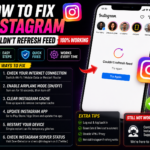
Check Downdetector for Instagram outages ✓ → Force close and reopen Instagram ✓ → Switch network (WiFi ↔ mobile data) ✓ → Turn off VPN if active ✓ → Clear Instagram cache (Android) or offload app (iPhone) ✓ → Log out and back in ✓. Do these six things first. They solve the “couldn’t refresh feed” error for the large majority of people without needing to reinstall or contact Instagram support.
Start with the cache clear — it’s the fix that works most consistently across both Android and iPhone and takes under two minutes. If that doesn’t work, check whether the issue is network-specific by switching between WiFi and mobile data. If it works on one but not the other, the problem is the network, not Instagram.
If you’re getting the error on both networks and the cache clear didn’t help, check Downdetector to rule out a server-side issue, then try logging out and back in. Reinstalling is the last step but also the most thorough one — once you do it, you’ve eliminated every possible app-side cause. Whatever’s left at that point is either an account issue or an Instagram server problem, neither of which you can fix from your phone.