Instagram Loading Problem Fix on Vivo Phones
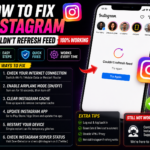
Instagram stuck on a loading screen on your Vivo phone? Feed won’t open, stories keep spinning, Reels just won’t load — this is one of the most common issues on Vivo phones, and there is a fix. Let’s get straight to what actually works.
When My Vivo Y21 Completely Broke Instagram
One night I was scrolling through my feed — everything was working fine, Reels loading smoothly, stories playing. I went to sleep. Woke up the next morning, opened Instagram, and all I got was a spinning circle. Nothing. Just that loading icon that never stopped.
My first thought was the internet. Turned off WiFi, switched to mobile data — same thing. Closed the app, reopened it — same spinning circle. After twenty minutes of this, I borrowed a friend’s phone, opened Instagram — it worked perfectly. That’s when I knew the problem was specifically with my Vivo Y21.
That day I discovered that Instagram loading issues on Vivo phones — especially the Y series and V series — follow a very specific pattern. They hit without warning, and if you don’t know the right steps, you can waste hours trying random things that don’t help.
This article is exactly what I wished I had that morning.
What Actually Causes the Instagram Loading Problem
First, let’s clear up the biggest misconception: this is usually not an internet problem. Most people immediately assume their connection is slow or unstable — but nine times out of ten, the real cause is something else entirely.
Here are the specific things that block Instagram from loading on Vivo phones:
Instagram saves thousands of images, videos, and thumbnails to cache every single day. Vivo phones — especially budget models — have limited internal storage. Once the cache hits 500MB or more, the app starts freezing and failing to load.
Vivo’s own operating system is extremely aggressive about killing background apps to save battery. Sometimes it cuts Instagram’s network connection mid-session, causing the app to hang on a loading screen.
Instagram pushes updates almost every week. Sometimes a new version of the app and an older Vivo firmware version don’t play nicely together — this shows up as loading failures right after an update.
This sounds strange, but Instagram’s servers verify an SSL certificate every time you connect. If your phone’s date or time is even slightly off, Instagram simply refuses to connect. This is surprisingly common on Vivo phones in Pakistan.
Pakistani mobile networks — Jazz, Telenor, Zong — occasionally throttle or block specific servers. This directly impacts Instagram’s ability to load content, even when other apps work fine.
Usually just one of these is the culprit — you don’t need to try everything. Work through the fixes below in order. As soon as Instagram loads normally, stop there. No need to keep going.
7 Working Fixes — Step by Step
Fix 1 — Clear Instagram’s App Cache
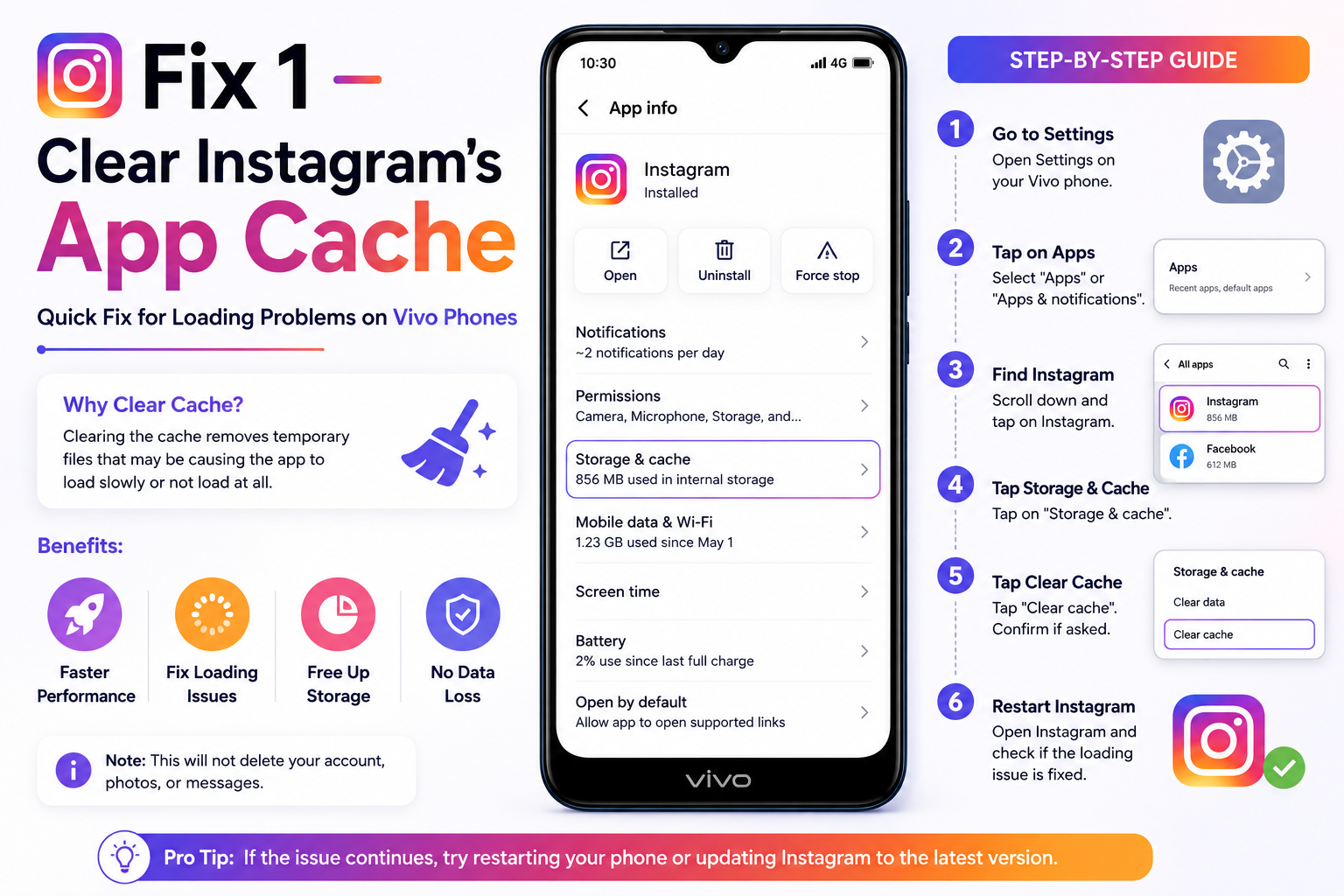
This is always the first thing to try — and it solves the problem in about 60% of cases. Clearing the cache does not log you out or delete anything important. It only removes temporary files that have built up over time.
Go to your phone’s Settings app — the gear icon.
Scroll down and tap “Apps” or “App Management” — whichever your Vivo shows.
Scroll through the app list and tap on Instagram.
Tap the “Storage” option inside Instagram’s app info page.
Only tap Clear Cache — do NOT tap Clear Data, as that will log you out of your account completely.
Now open Instagram. If it loads — you’re done. If it’s still spinning, move on to the next fix.
Fix 2 — Set Date and Time to Automatic
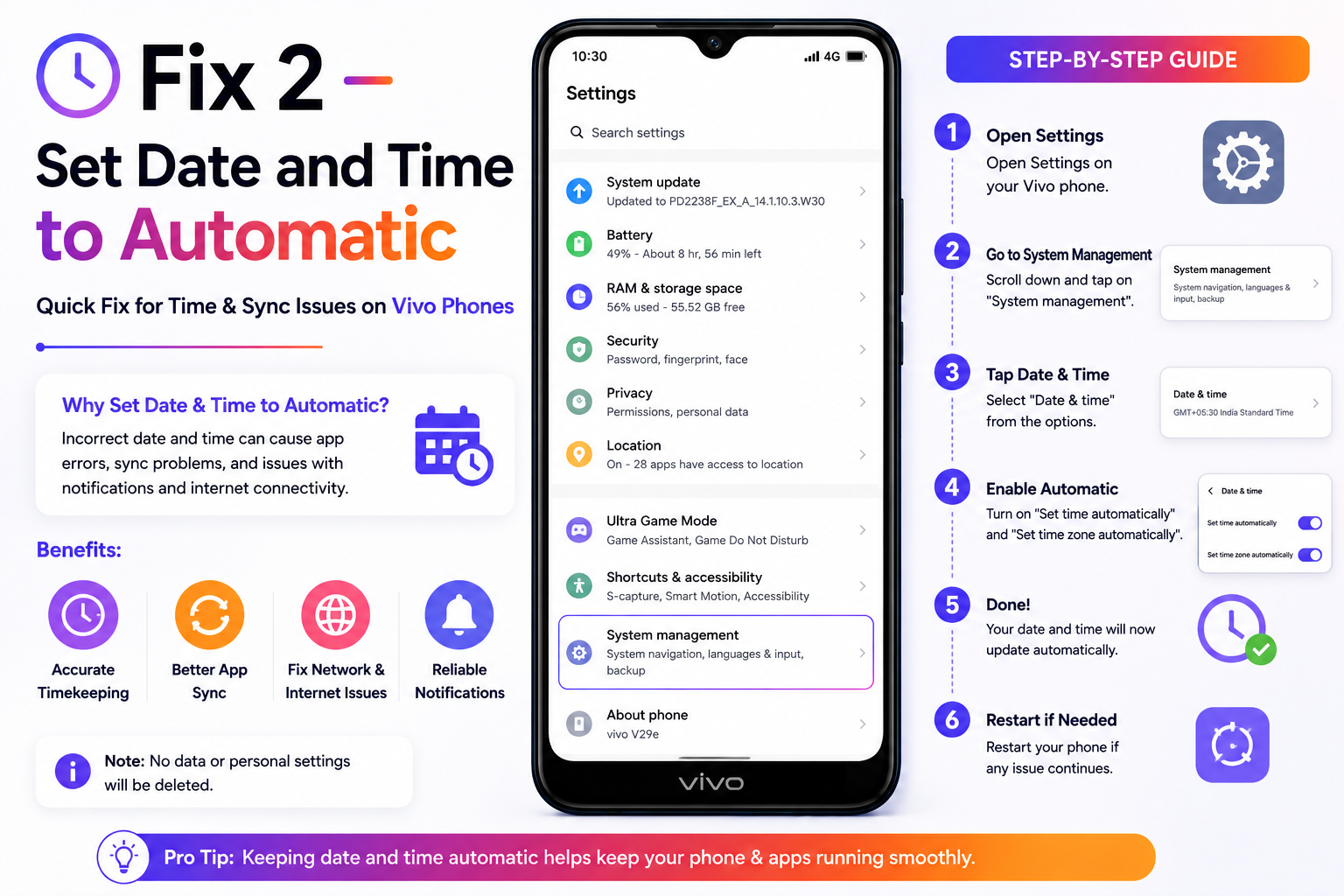
This is the fix most people never think to try — yet it’s the actual root cause more often than you’d expect.
On Vivo phones, go into “Additional Settings” inside the main Settings menu.
Tap on the “Date & Time” option.
Turn on “Set time automatically” and “Set timezone automatically.” Then restart your phone.
If these toggles were already on, turn them off, wait 10 seconds, then turn them back on. Sometimes the toggle itself needs a refresh to pull the correct time from the network.
Fix 3 — Remove Instagram from Vivo’s Battery Saver
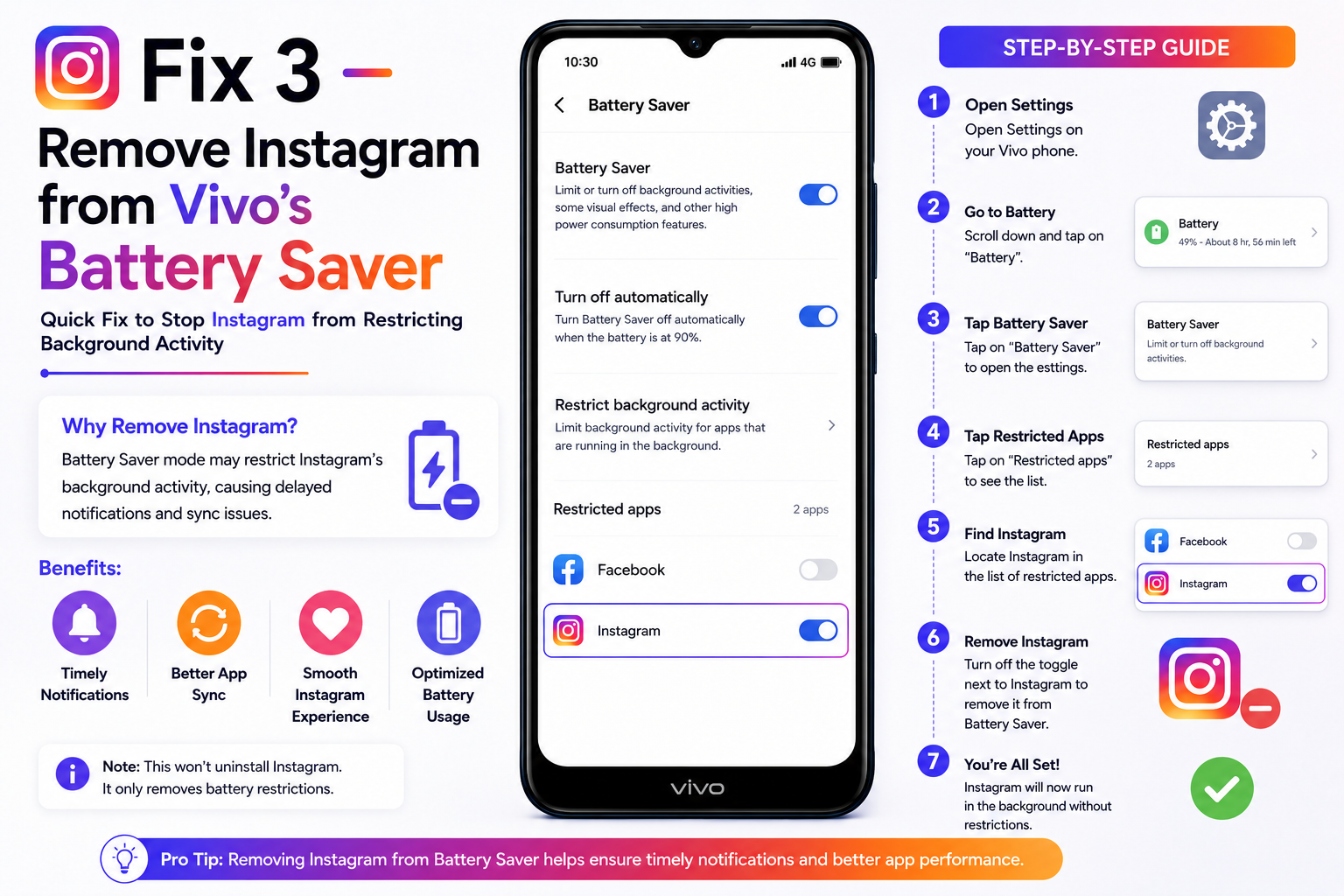
This is a Funtouch OS specific issue. Vivo’s battery optimization is very aggressive — and it frequently cuts Instagram’s background activity, which causes the feed to stall on loading.
Open your phone’s Battery settings.
Look for “Background App Management” or “App Battery Management.”
Select Instagram and choose “No Restrictions” or “Allow background activity.”
Fix 4 — Reset Your Network with Airplane Mode
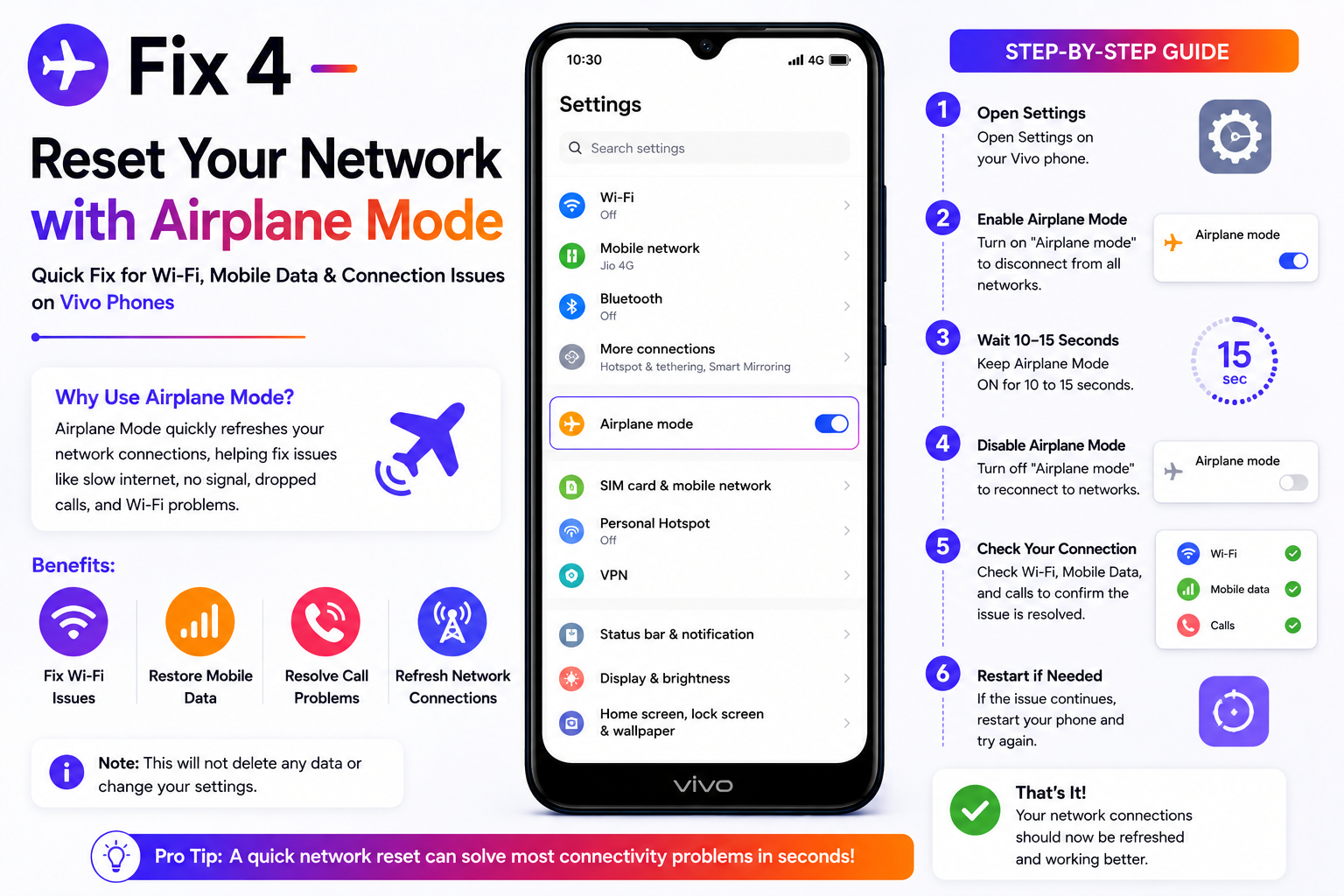
A simple but surprisingly effective trick that forces your phone to establish a fresh network connection:
Pull down the quick settings panel and turn on Airplane Mode. Wait 30 seconds.
After 30 seconds, turn it off and let the phone fully reconnect to the network.
Try loading Instagram again with the fresh network connection.
Fix 5 — Switch to Google DNS
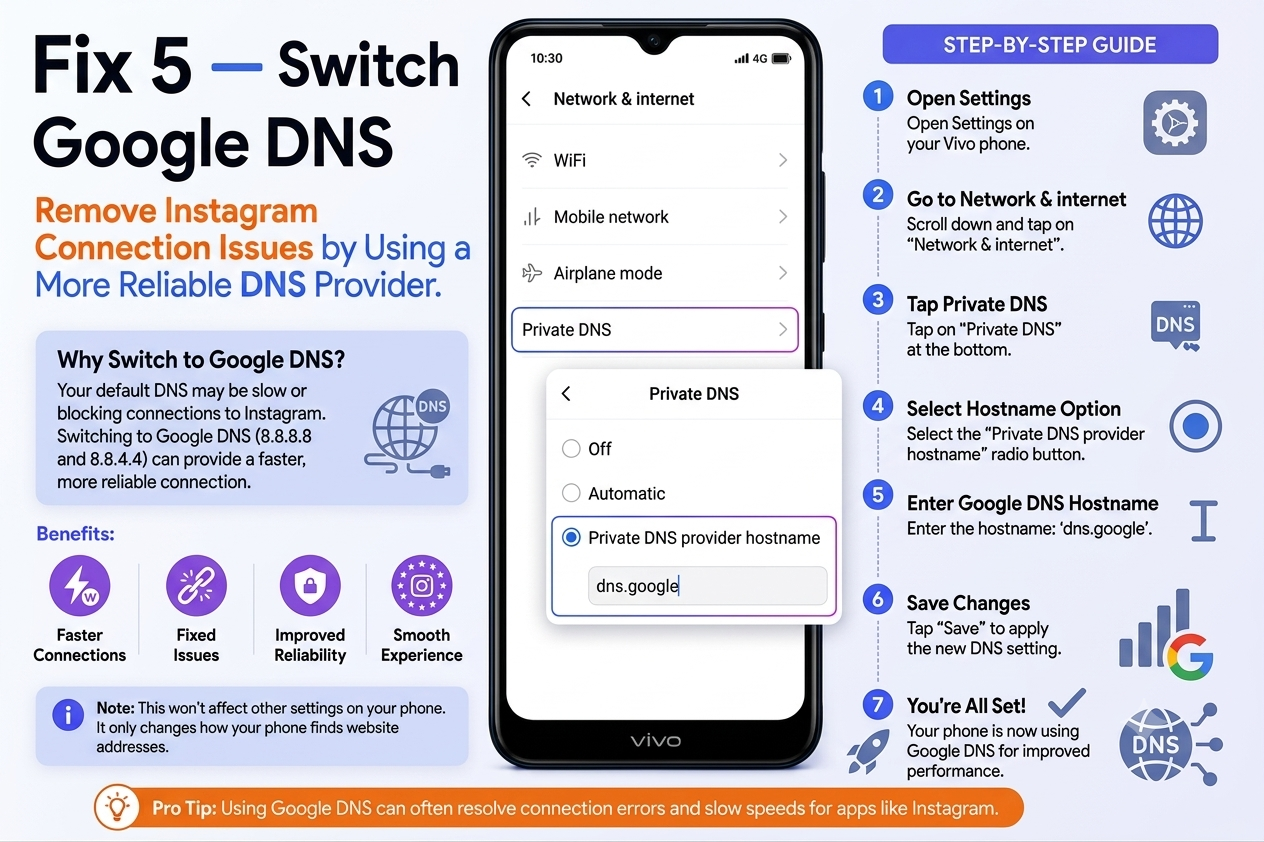
This sounds more technical than it is — and it’s actually very easy to do. Jazz and Telenor’s default DNS servers sometimes have trouble reaching Instagram’s servers. Google’s DNS (8.8.8.8) is much more reliable and fixes loading issues caused by network-level blocks.
Long press on your connected WiFi network and select “Modify Network.”
Toggle on “Advanced options” and change IP Settings to “Static.”
Set DNS 1 to 8.8.8.8 and DNS 2 to 8.8.4.4. Save and reconnect.
Fix 6 — Uninstall and Reinstall Instagram
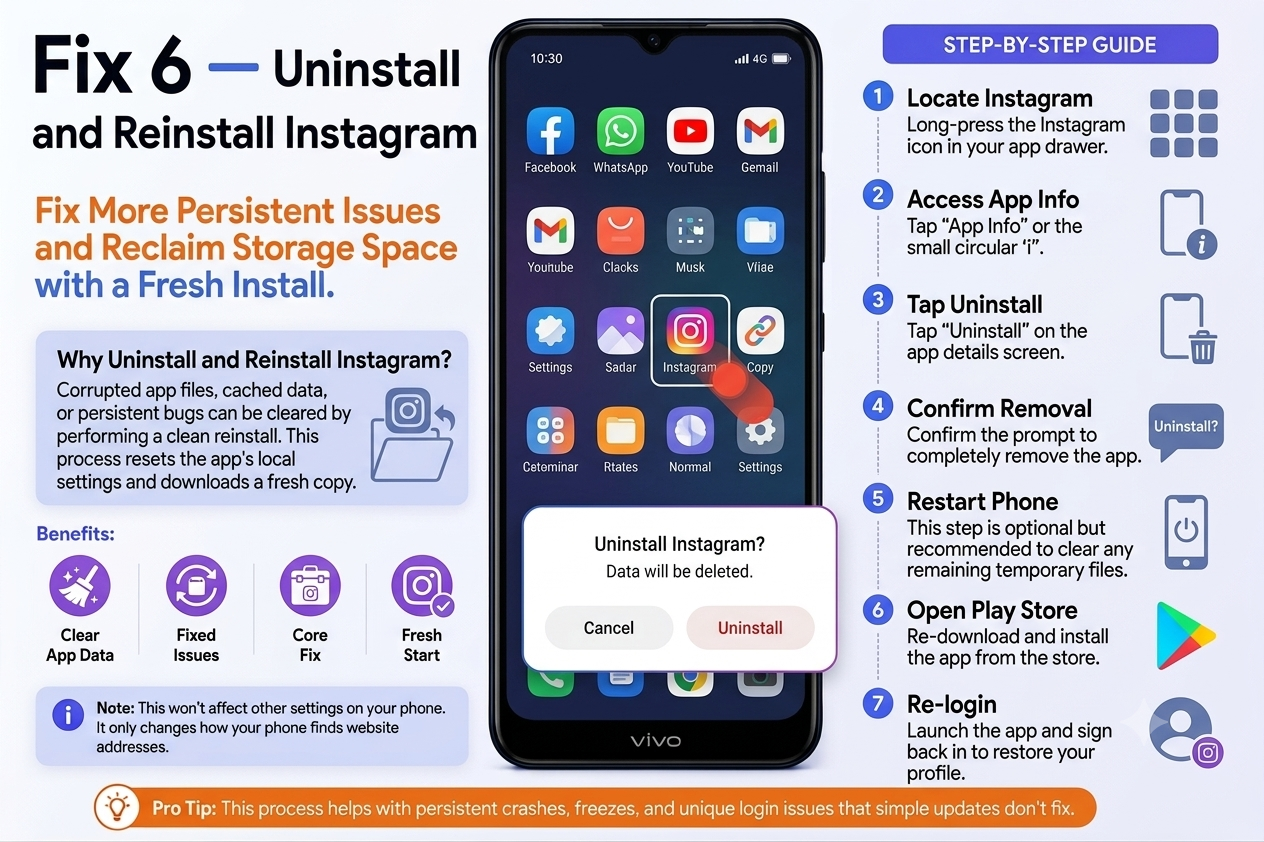
If clearing the cache didn’t work, it’s time to remove the app entirely and start fresh. Don’t worry about losing anything — your account, posts, and followers all live on Instagram’s servers. Log back in and everything comes back instantly.
Long press the Instagram icon and tap Uninstall. Confirm the removal.
After uninstalling, power the phone off and back on before reinstalling.
Open Google Play Store, search Instagram, and install it. The latest version will download automatically.
Enter your username and password. Your profile, posts, and messages will all be right there.
Fix 7 — Reset Network Settings
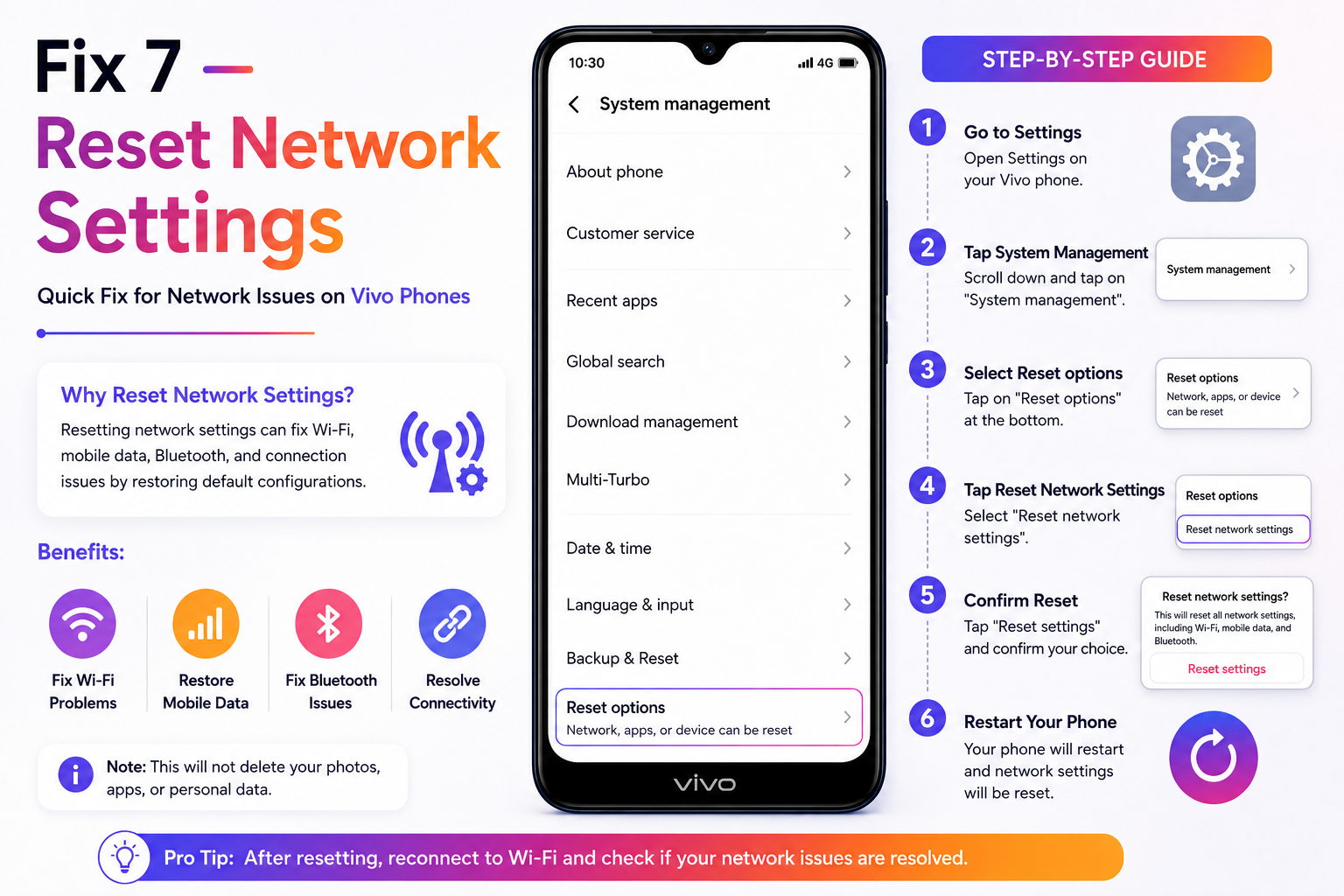
This is the last resort option. It will clear your saved WiFi passwords and Bluetooth pairings — but it won’t delete any of your personal data or photos. Only do this if everything above has failed.
Go into Additional Settings in the main Settings menu.
Look for “Reset Network Settings” — this is separate from a factory reset and won’t touch your files.
After the reset, re-enter your WiFi password and try Instagram again.
Common Mistakes People Make
I made all of these myself — so I’m listing them here so you don’t waste time the same way I did:
- Tapping “Clear Data” instead of “Clear Cache”: These are two completely different things. Clear Data wipes your login session and all app settings. You only want Clear Cache — the temporary files, nothing else.
- Not restarting the phone between fixes: Many of these fixes only take full effect after a restart. Make it a habit — any significant change, restart the phone before testing Instagram.
- Leaving a VPN running: A lot of people think a VPN will help Instagram load — but on Vivo phones, a VPN is very often the cause of the loading problem. Turn it off first before trying anything else.
- Jumping straight to factory reset: An Instagram loading problem absolutely does not require a factory reset. That’s an extreme measure — try all 7 fixes above before even thinking about it.
- Giving up after one fix doesn’t work: On Vivo phones, different models and firmware versions respond to different fixes. What works on a Y21 might not work on a V25. Work through the sequence with some patience.
If any app or website tells you to “download this APK to fix Instagram” — don’t do it. These are fake apps designed to steal your account credentials. Only ever install Instagram from the official Google Play Store.
If Nothing Works
“If you’ve tried all 7 fixes and Instagram still won’t load, the problem might not be your phone at all — it could be your account.“
This is something a lot of people completely overlook. Sometimes Instagram refuses to load not because of the device, but because of what’s happening at the account level:
Instagram may have temporarily restricted your account: When Instagram detects unusual activity, it silently restricts accounts — the app opens but the feed won’t load. Check Instagram’s official Help Center to see if there’s a flag on your account.
Test on another device: Log into your account on someone else’s phone or in a browser. If you get the same loading problem there, the issue is with your account — not your Vivo phone.
Check if Instagram is down globally: Visit downdetector.com and search for Instagram. Sometimes the app goes down worldwide — and users in Pakistan tend to notice it more because the fallback servers are slower here.
If the problem shows up on another device too, and Downdetector shows everything is fine — contact Instagram Support directly. Their response time is slow, but it’s the only real path forward for account-level issues.
Final Thoughts
Instagram loading problems on Vivo phones are genuinely frustrating — especially when you don’t know where to start. But the good news is that in about 90% of cases, it comes down to one simple thing: cache buildup, a wrong date/time setting, or Vivo’s battery optimization cutting off the app.
The sequence that works best in my experience: clear the cache first, then check date/time, then disable battery restrictions for Instagram. If those three don’t fix it, go to uninstall and reinstall. These four steps cover the Vivo Y series and V series both.
If your specific Vivo model behaves differently or you can’t find a particular setting on your phone — send us a WhatsApp message with your model number and the exact issue. We’ll track down the right steps for your device specifically.
No fix worked for you? WhatsApp us at 0311 652 2384 — tell us your Vivo model number and exactly what’s happening. We respond personally and will find the right steps for your specific phone. Completely free.