
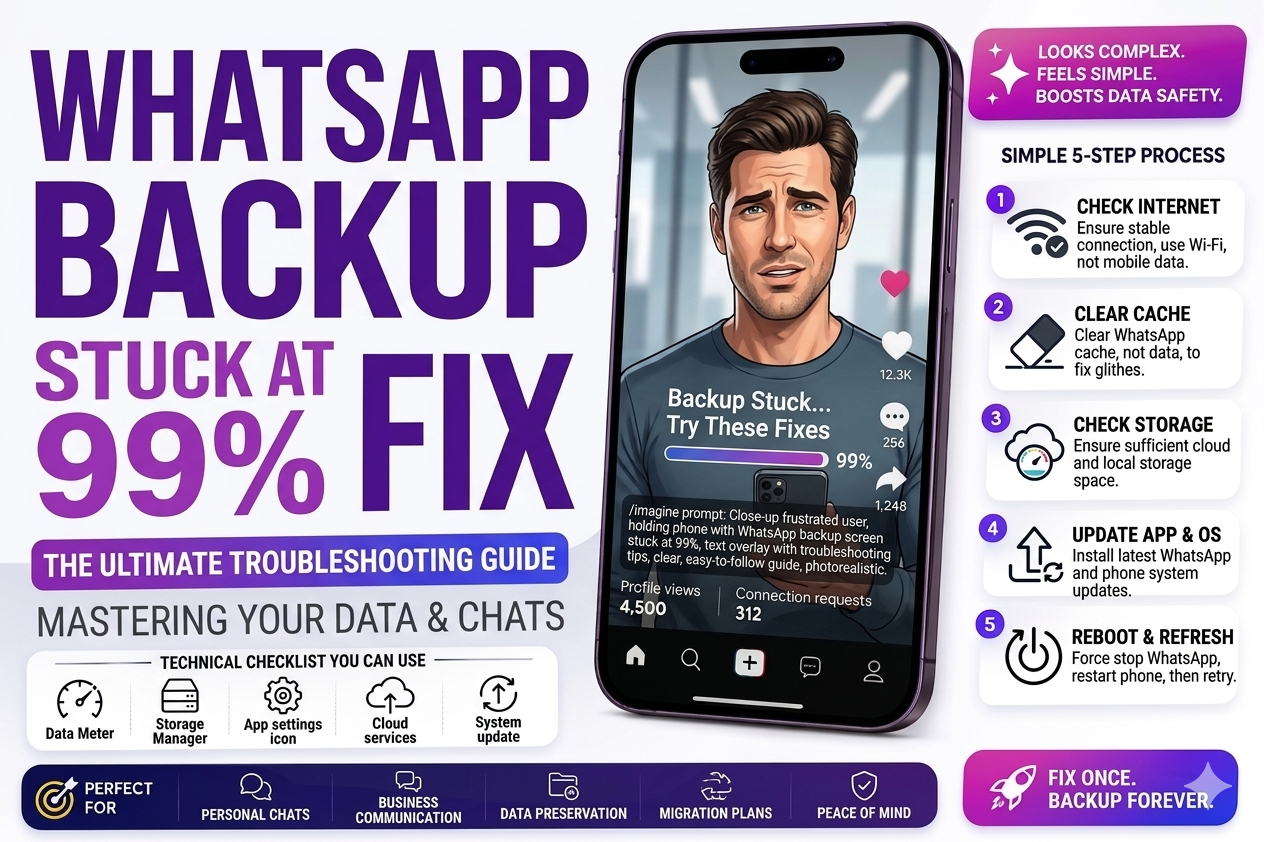
It had been sitting at 99% for forty minutes. My internet was fine. WhatsApp was open. The backup just refused to move. I tried everything obvious — and then found the actual fix buried in a setting nobody thinks to check.
There are few things more frustrating than a WhatsApp backup that parks itself at 99% and just… stays there. The loading animation keeps spinning. The percentage never changes. You wait five minutes, ten minutes, half an hour. Nothing.
This happened to me before switching phones last year. I had years of chat history — family conversations, important documents people had shared on WhatsApp, photos I hadn’t saved anywhere else. Getting that backup to complete felt genuinely stressful.
What made it worse was that the “obvious” fixes didn’t work. Strong WiFi — checked. Storage space — fine. WhatsApp updated — yes. Still stuck at 99%.
After going through this myself and helping a few others with the same problem since, I’ve put together everything that actually fixes it — ordered from quickest to most involved. Most people get it resolved within the first three fixes.
Why WhatsApp Gets Stuck at 99%
The 99% stall is almost always caused by one of a few specific issues. Understanding which one you’re dealing with helps you skip straight to the right fix rather than trying everything randomly.
Before trying any fix, force-close WhatsApp completely (swipe away from recents), wait 30 seconds, reopen, and go to Settings → Chats → Chat Backup → Back Up Now. This alone fixes it about 20% of the time — the backup process sometimes gets into a frozen state that a fresh start clears.
The Fixes — In Order of How Often They Work
This is the most common cause and the most overlooked. Google gives you 15GB of free storage — but that 15GB is shared between Google Drive, Gmail, and Google Photos. If your Gmail inbox is large or your Photos library is backed up, you might have far less space than you think. WhatsApp backup needs some room to work, and if Drive is at 14.9GB used, the backup will get to 99% and stall on the last piece.
- Open Google Drive on your phone → tap your profile picture → tap “Manage storage”
- Check how much free space is shown — you need at least 500MB free ideally
- If full: delete old Google Drive files, empty Gmail trash, or buy 100GB storage (about $3/month)
- After freeing space, retry the WhatsApp backup
Google authentication tokens expire silently. WhatsApp thinks it’s connected to your Drive but the permission has actually lapsed — it starts the backup, reaches the point where it needs to write the final file, and gets rejected without showing you an error. It just freezes at 99%.
- Open WhatsApp → Settings → Chats → Chat Backup
- Tap on your Google account shown under “Back up to Google Drive”
- Select “None” to unlink it
- Wait 10 seconds, tap the account area again and re-select your Google account
- Tap “Back Up Now” and watch if it progresses past 99%
Android’s battery management aggressively pauses background processes when the screen turns off — and WhatsApp backup is considered a background process by many phone manufacturers. The backup reaches 99%, the screen times out, the OS pauses the process, and it never completes.
- Go to Settings → Display → Screen Timeout and set it to maximum (usually 10 minutes or “Never”)
- Keep the phone plugged in and the screen on while backing up
- Don’t switch apps — stay on the WhatsApp backup screen until it shows “Backed up”
- Remember to set screen timeout back to normal afterward
“WhatsApp doesn’t tell you why it’s stuck. It just shows 99% forever. That silence is why this problem drives people crazy — there’s no error message pointing you anywhere.”
Chinese-manufactured Android phones (Samsung, Xiaomi, Vivo, Oppo, Realme) are particularly aggressive about battery management and often throttle or pause apps mid-process. If you’re on one of these brands, this fix is almost certainly your problem.
- Go to Settings → Apps → WhatsApp → Battery
- Set battery optimization to “Unrestricted” or “No restrictions”
- On Samsung: Settings → Apps → WhatsApp → Battery → Allow background activity → ON
- On Xiaomi/MIUI: Settings → Apps → Manage Apps → WhatsApp → Battery saver → No restrictions
- Restart phone and retry backup
If there’s an existing corrupted backup on Google Drive, WhatsApp tries to update it rather than create a fresh one — and gets stuck trying to modify a broken file. Deleting the old backup forces a clean write from scratch.
- Open Google Drive app → tap the three lines (hamburger menu) → select “Backups”
- Find your WhatsApp backup in the list
- Tap the three dots next to it → Delete Backup
- Confirm deletion
- Go back to WhatsApp → Settings → Chats → Chat Backup → Back Up Now
- This will create a completely fresh backup — it may take longer than usual the first time
Important: Don’t uninstall WhatsApp before the new backup completes — without the Drive backup, reinstalling would mean losing your chats.
A bloated or corrupted cache can interfere with the backup process. Clearing it doesn’t delete your chats or media — it only removes temporary files the app has built up.
- Go to Settings → Apps → WhatsApp → Storage
- Tap “Clear Cache” — do NOT tap “Clear Data” (that wipes everything)
- Reopen WhatsApp — your chats will still be there
- Go to Chat Backup and try again
An incorrect system time causes Google’s authentication to silently fail — the SSL certificates don’t match, Drive rejects the connection, and the backup stalls at the final stage with no error message.
- Go to Settings → General Management → Date & Time
- Ensure “Automatic date & time” is ON
- If already on, toggle it OFF and back ON to force a resync
- Retry the backup
Sometimes a specific network has routing issues that stall large uploads at the final stage. Switching connection type forces WhatsApp to re-establish the upload connection entirely.
- If on WiFi: turn WiFi off, enable mobile data, retry backup
- If on mobile data: connect to WiFi instead and retry
- If WhatsApp won’t back up on mobile data by default: Settings → Chats → Chat Backup → Back up over → set to “Wi-Fi or cellular data”
If nothing else has worked, a WhatsApp app bug from a recent update might be the cause. Updating to the latest version often patches backup-related bugs.
- Open Google Play Store → search WhatsApp → Update if available
- If already latest: complete a manual local backup first (WhatsApp → Settings → Chats → Chat Backup → Back Up — this saves to your phone storage, not Drive)
- Uninstall WhatsApp, reinstall from Play Store
- During setup, restore from local backup when prompted
- Then attempt the Google Drive backup again from a clean install
Which Fix Matches Your Situation
| Your Situation | Most Likely Fix |
|---|---|
| Stuck at 99% every single time | Fix 1 (Drive storage full) or Fix 5 (corrupted old backup) |
| Was working before, suddenly stopped | Fix 2 (re-link Google account) or Fix 7 (date & time) |
| Samsung / Xiaomi / Vivo / Oppo phone | Fix 4 (battery optimization) — try this first on these brands |
| Completes when phone is plugged in but not otherwise | Fix 3 (screen timeout) + Fix 4 (battery optimization) |
| Works on WiFi but not mobile data | Fix 8 (switch connection) + enable cellular backup in settings |
| Stopped working after WhatsApp update | Fix 6 (clear cache) then Fix 9 (update/reinstall) |
| Google Drive shows backup exists but it’s old | Fix 5 (delete old backup) + Fix 2 (re-link account) |
Mistakes That Make This Worse
If you uninstall WhatsApp hoping a fresh install will fix it — before a backup exists on Drive — you will lose your chat history. WhatsApp needs either a completed Google Drive backup or a local backup on phone storage before you uninstall. Always do Fix 9’s manual local backup step first if you’re going the reinstall route.
These are two different buttons in the same menu. “Clear Cache” is safe — it removes temporary files. “Clear Data” deletes everything including your local chat database. If you tap the wrong one, your chats are gone unless you have a valid backup. Look carefully before tapping.
You can have strong WiFi signal and still have routing issues that affect large uploads. Speed tests passing doesn’t mean Google Drive uploads will work correctly. If you’ve tried other fixes and nothing works, testing on mobile data (Fix 8) takes 30 seconds and has resolved it for multiple people I’ve helped.
If the reason you’re trying to fix this backup is because you’re switching to a new phone — do not proceed until you see the “Backed up” confirmation message with today’s date and time. A backup stuck at 99% is not a completed backup. Your chats are not safely stored yet. Take the time to get a confirmed completed backup before factory resetting or handing off the old phone.
iPhone Users: Slightly Different Process
On iPhone, WhatsApp backs up to iCloud instead of Google Drive. The 99% stall still happens but the fixes are slightly different.
Check iCloud storage at Settings → [Your Name] → iCloud → Manage Storage. Make sure WhatsApp is allowed to use iCloud: Settings → [Your Name] → iCloud → scroll to WhatsApp → toggle ON. Sign out of iCloud and sign back in to refresh the authentication token. If backup still stalls, go to Settings → iCloud → Manage Storage → Backups → delete the WhatsApp backup, then retry from WhatsApp.
What Actually Fixed Mine
In my case — the 40-minute-stuck-at-99% situation — it was a combination of Fix 2 and Fix 3. The Google account token had lapsed, and even after re-linking it, the backup kept pausing because the screen was timing out and Android was cutting the background process.
The moment I set screen timeout to “Never,” plugged the phone in, re-linked the Google account, and started the backup — it completed in about eight minutes. All the waiting I’d done before was pointless because the phone was going to sleep every two minutes and the process was restarting from near the beginning each time.
The second person I helped had Fix 1 — her Google Drive was at 14.8GB out of 15GB because she’d never deleted old emails with large attachments. Five minutes clearing Gmail got her 2GB of space and the backup completed on the first try.
Drive storage has space ✓ → Google account re-linked ✓ → Screen timeout set to Never + phone plugged in ✓ → Battery optimization off ✓ → Old Drive backup deleted ✓ → Cache cleared ✓ → Date & time automatic ✓ → Connection type switched ✓. If all eight are done and it’s still stuck, Fix 9 (reinstall from local backup) is the last software-level option.
Start with Fix 1 (check Drive storage) and Fix 2 (re-link Google account) — these two alone resolve the majority of 99% stalls. If you’re on a Samsung, Xiaomi, Vivo, or Oppo phone, Fix 4 (battery optimization) should be your second stop. And whatever you do — keep the screen on and the phone plugged in during the backup. That single thing has fixed it for more people than any other step on this list.